Account & security
Everything about your own account: signing in, keeping it secure, the emails you get, and using AtSocials on your phone.
Sign in and reset your password
- Sign in at atsocials.com/login with your email and password.
- Forgot it? Click Forgot password? on the sign-in page and enter your email. You'll get a reset link that works once, for one hour.
- Joining someone's team? Use the link in your invitation email to create your account.
Two-factor sign-in
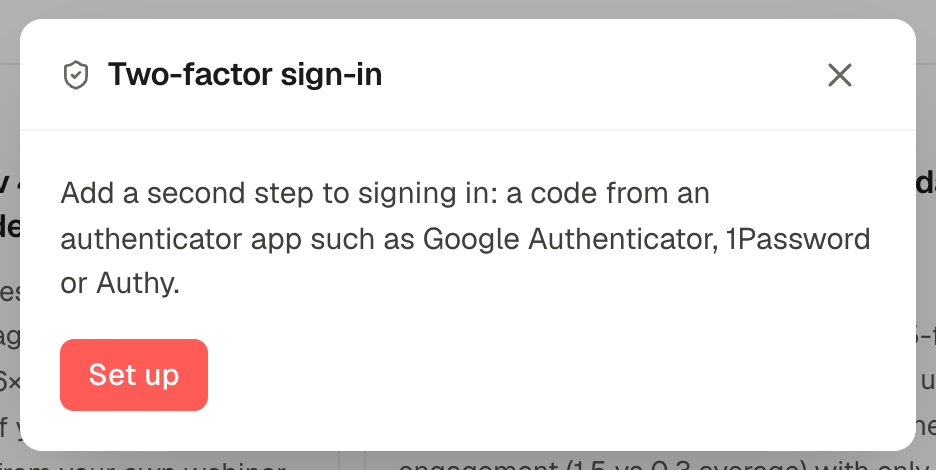
Two-factor sign-in adds a second step: after your password, you type a 6-digit code from an authenticator app such as Google Authenticator, 1Password or Authy.
- Open the account menu at the bottom of the sidebar → Security, and click Set up.
- Scan the QR code with your authenticator app (or type the key it shows).
- Enter the 6-digit code from the app to confirm.
- Save your recovery codes somewhere safe. Each one works once if you lose your phone.
With two-factor on, resetting your password also asks for a code.
Notifications and emails
Click the bell in the top bar, then the sliders icon, to choose what's also emailed to you: posts that need your approval, changes requested or approved on your posts, notes on your posts, failed posts, channels that need reconnecting, new messages and comments, finished podcast clips and announcements. Everything always appears in the app. See Notifications.
What's new
Account menu → What's new lists product updates. A dot on the account menu means there's something you haven't read.
Use it on your phone
AtSocials works in your phone's browser, and you can add it to your home screen so it opens like an app:
- iPhone (Safari): open atsocials.com, sign in, tap the Share button, then Add to Home Screen.
- Android (Chrome): open atsocials.com, sign in, tap the ⋮ menu, then Install app or Add to Home screen.
On a phone the sidebar moves behind the ☰ button, and the tab bar along the bottom gives you Home, Calendar, a new post, Inbox and More.
Sign out
Account menu → Sign out.