Calendar
The calendar shows every post by day, in the brand's timezone. Use it to see gaps, move posts around, set your regular posting times and approve posts.
Week view
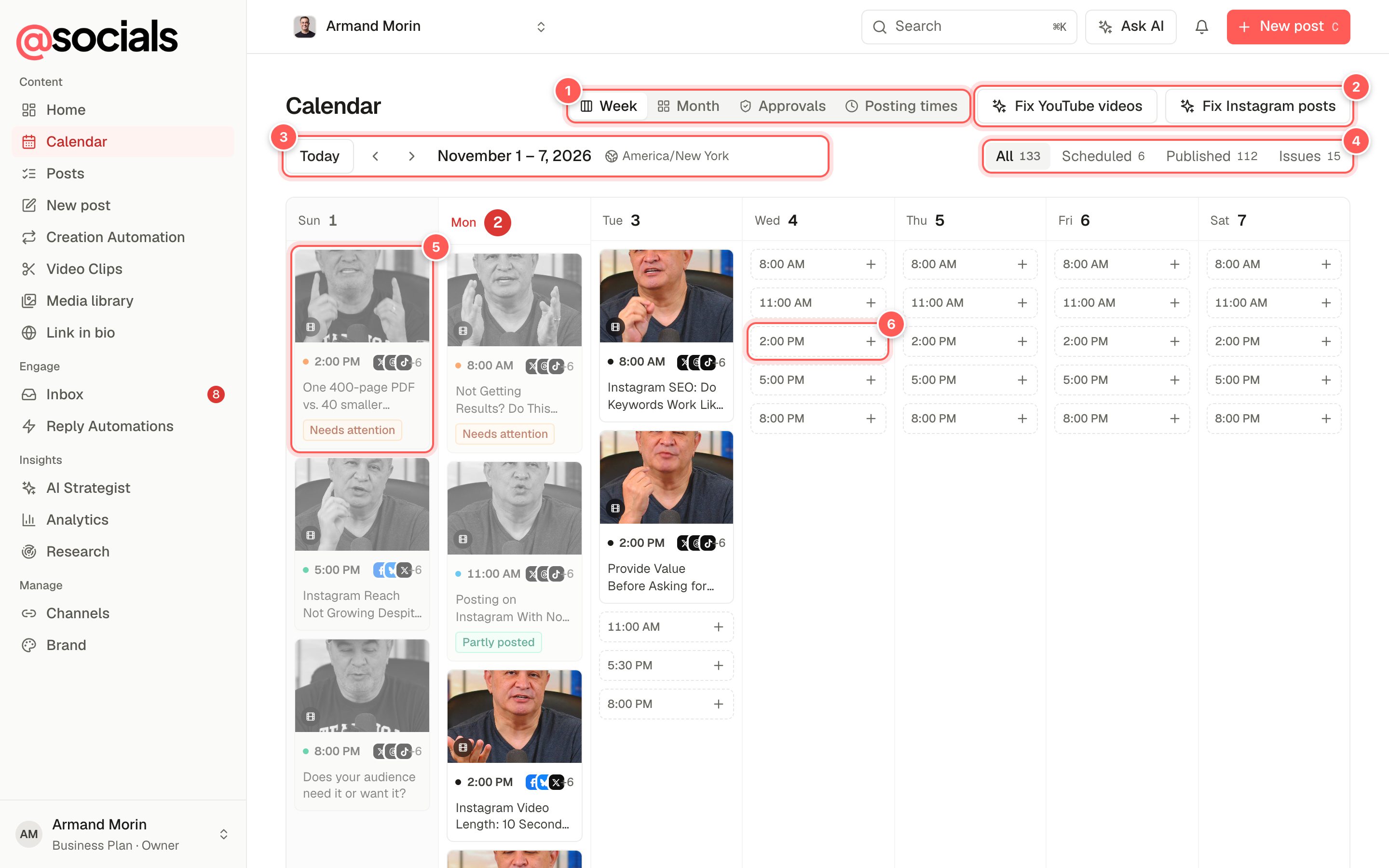
- Views. Week, Month, Approvals (when posts are waiting) and Posting times.
- Fix YouTube videos / Fix Instagram posts. AI checks that improve titles and captions in bulk. See Quick fixes.
- Today and the arrows move between weeks. The brand's timezone is shown next to the dates.
- Status filters. All, Scheduled, Published and Issues, with counts.
- A post. Its thumbnail, time, the channels it goes to (+6 means six more) and the start of the caption. A badge appears when something's up: Needs attention (a channel failed), Partly posted (some channels worked), or Held: channel paused.
- An open posting time. Dashed boxes are times from your posting schedule that are still free. Click + to write a post for that exact time.
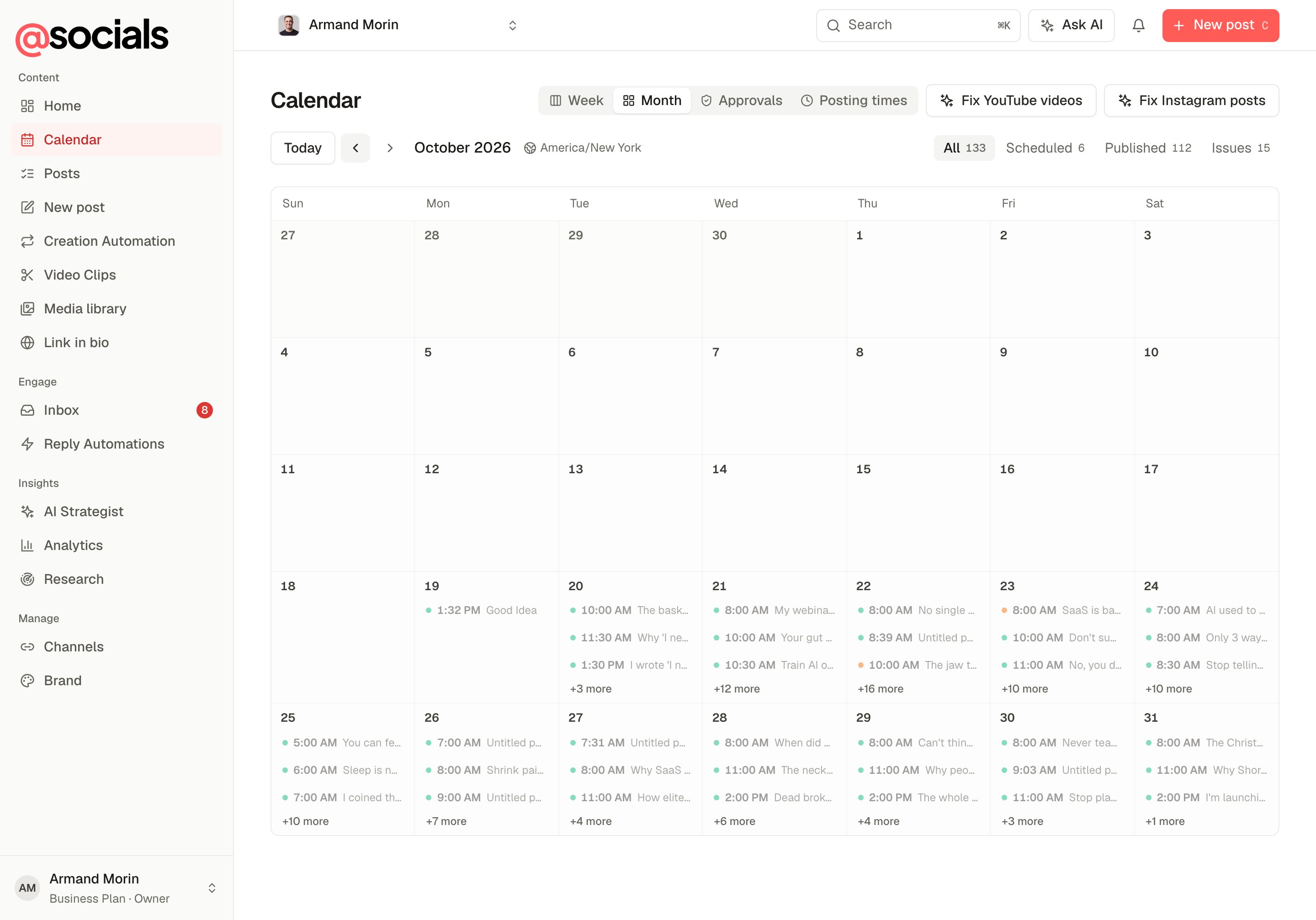
Month view
Post details
Click any post to open its details on the right.
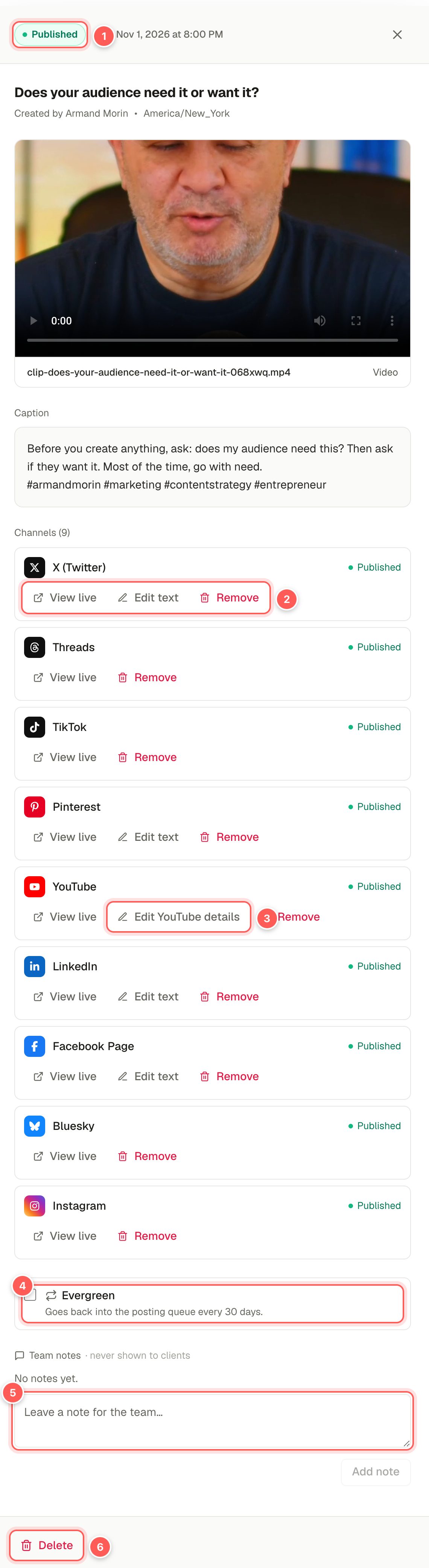
- Status and time. Scheduled, Published, Draft, Failed and so on, and when it goes or went out.
- Per channel. Each channel shows its own status (Waiting, Published, Failed). View live opens the post on the network. Edit text appears where the network allows edits. Remove deletes the post from that one channel; the others keep it.
- Edit YouTube details changes the title, description, tags, thumbnail, category, privacy and playlist of a live video. Suggest better details has AI write new ones from the video's transcript (1 AI caption).
- Evergreen. Marks a post to be reposted automatically. See Evergreen posts.
- Team notes. Notes for your team, never shown to clients or on review links. Whoever wrote the post gets notified.
- Delete removes the post from the calendar and, if it's published, deletes it from every channel it went to.
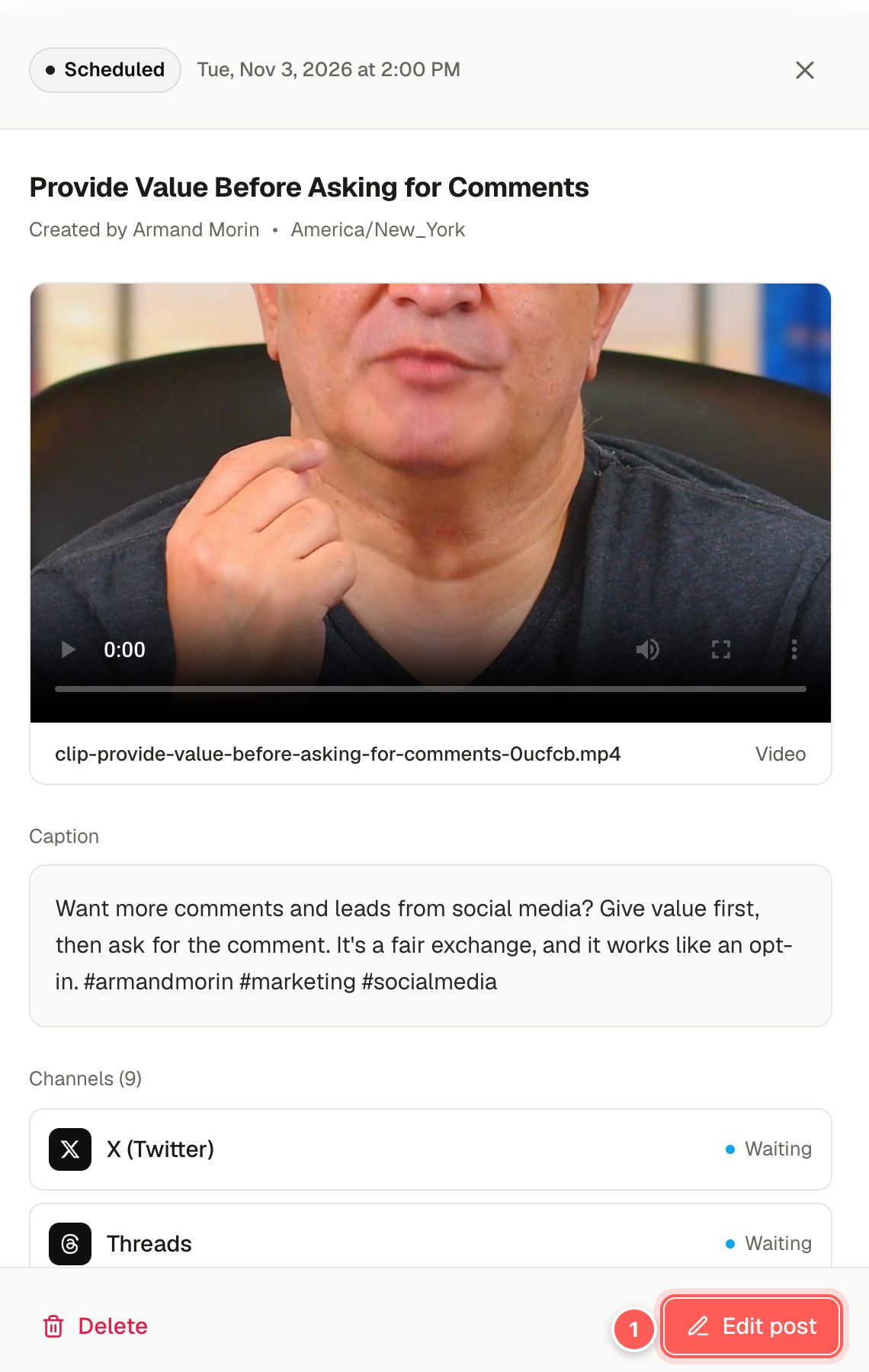
On a post that hasn't gone out yet, Edit post (callout 1 on the right) opens it in the composer. If some channels failed, Retry failed channels sends it again to just those.
Posting times and the queue
Your posting times are the slots you like to post in, for each day of the week. When you pick Queue in the composer, the post takes the next free slot.
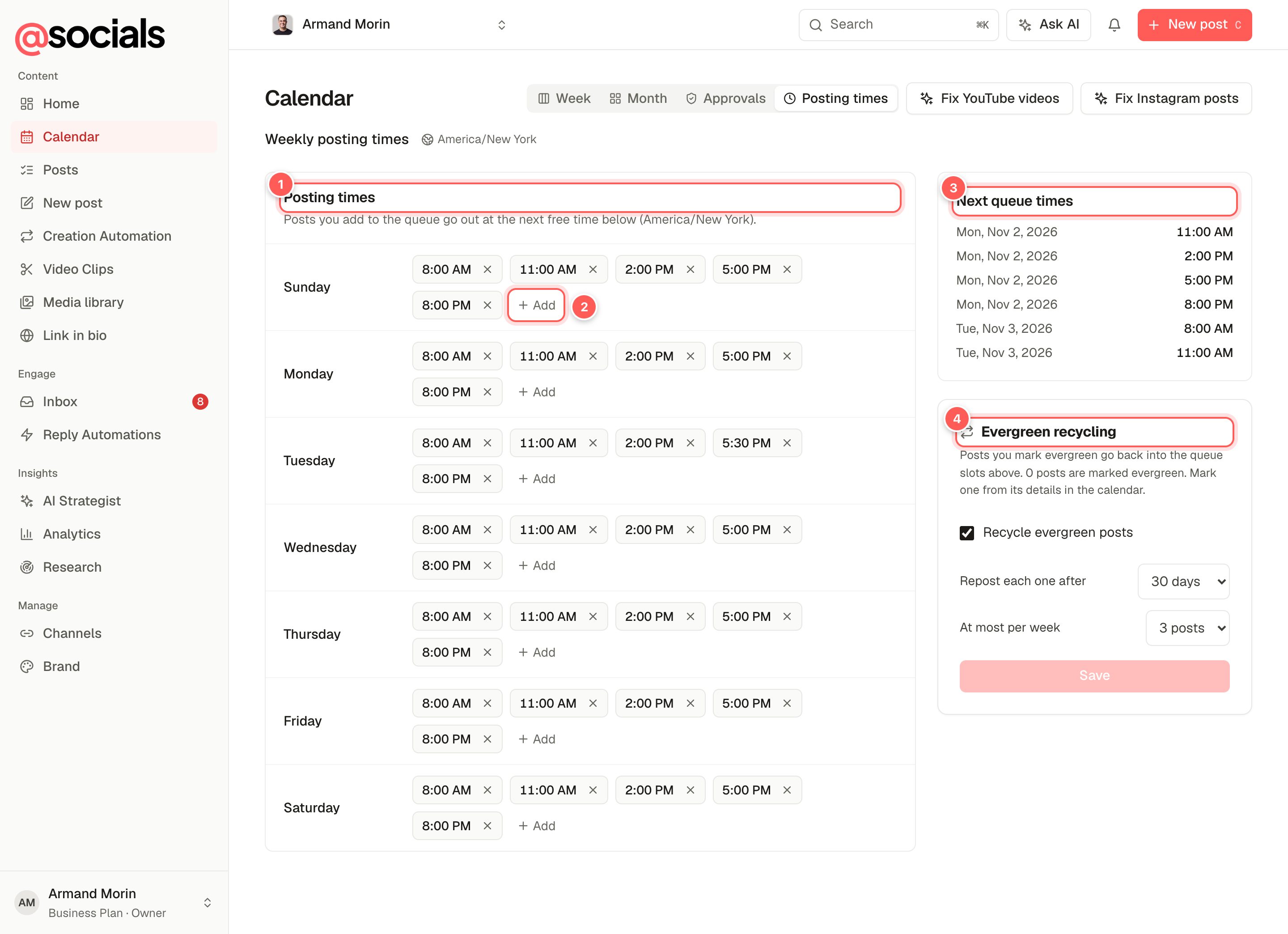
- Posting times for each day. Click × on a time to remove it.
- + Add adds a time to that day.
- Next queue times lists the next free slots, so you know when queued posts will go out.
- Evergreen recycling. The settings for reposting evergreen posts.
Evergreen posts
Some posts are worth sharing again: a guide, a testimonial, a timeless tip. Turn on Evergreen in a published post's details, then under Evergreen recycling:
- Tick Recycle evergreen posts.
- Repost each one after: how many days must pass before a post comes back (for example 30 days).
- At most per week: how many reposts a week.
Once a day AtSocials picks the evergreen post that's been waiting longest and adds a copy to the queue (at most one a day). Copies are tagged evergreen.
Approvals
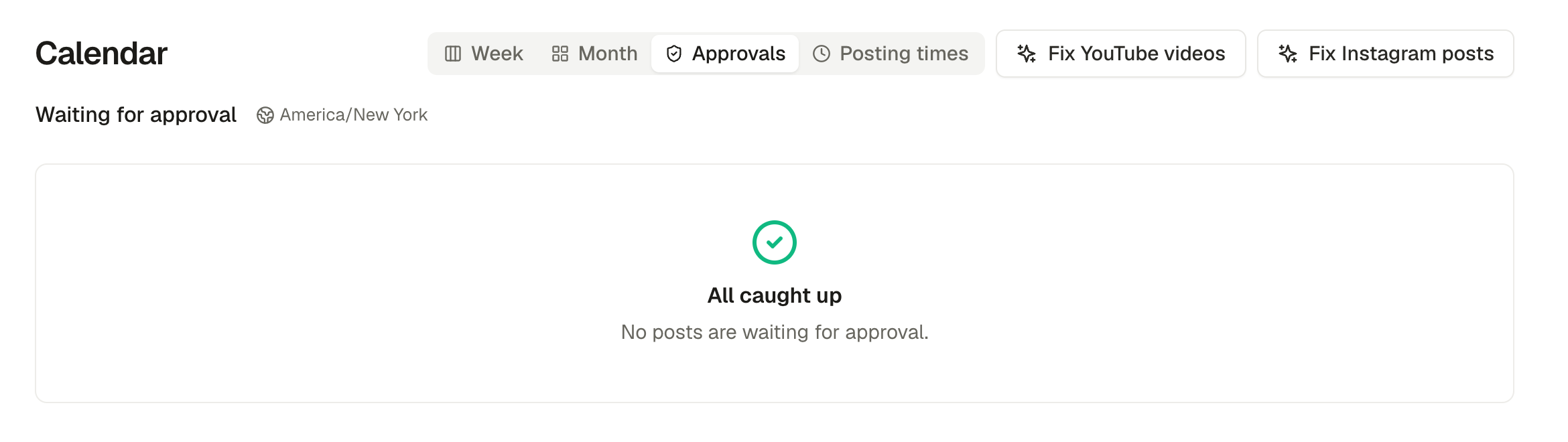
Posts sent with Send for approval first wait here until an owner, admin or client approver approves them or asks for changes. Approved posts go out at their scheduled time. Clients without an account can approve through a review link.
Quick fixes for YouTube and Instagram
Fix YouTube videos
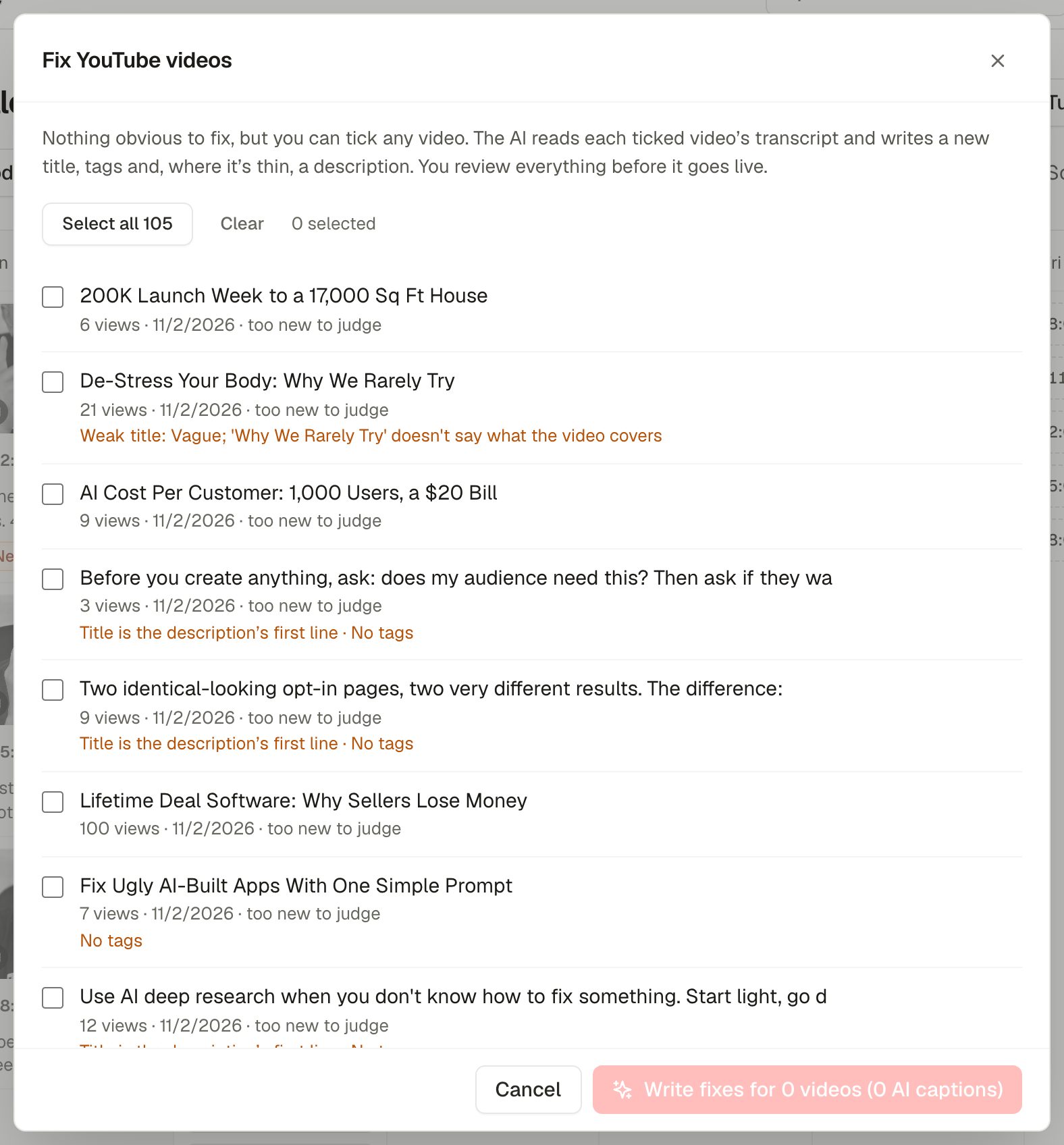
AtSocials checks the title and description of each video on your channel: titles that are just the caption, vague or too long titles, hashtags in titles, missing tags, thin descriptions and low views. New videos (under 2 days) are marked too new to judge, and videos doing well are left unticked so winning titles aren't touched.
- Tick the videos to improve (or Select all).
- Click Write fixes. AI reads each video's transcript and writes a new title, tags and, where needed, a description (1 AI caption per video).
- Review each suggestion, change anything you like, then click Apply. Only the fields you approve are updated on YouTube.
Fix Instagram posts
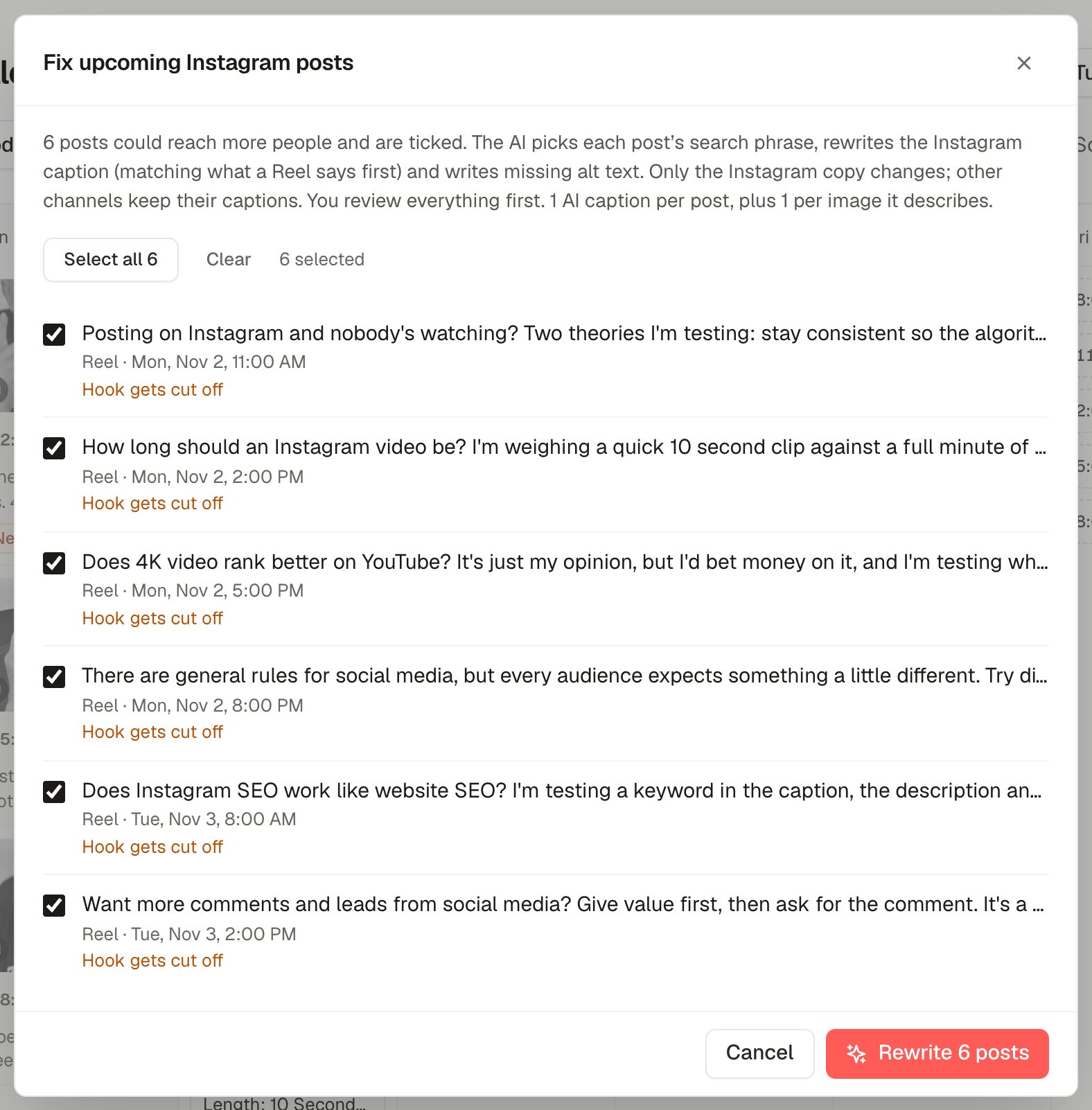
It lists scheduled Instagram posts that could reach more people (for example the hook gets cut off by "more", or no search phrase). Click Rewrite and the AI picks a search phrase, rewrites the Instagram caption to start with it (matching what a Reel says first) and writes any missing alt text. Only the Instagram copy changes; other channels keep their captions. You review everything before it's saved.