Team & plan
Invite the people you work with, decide what each can do, let clients approve posts, and manage your subscription.
Open it from the account menu at the bottom of the sidebar → Team & plan.
Invite your team
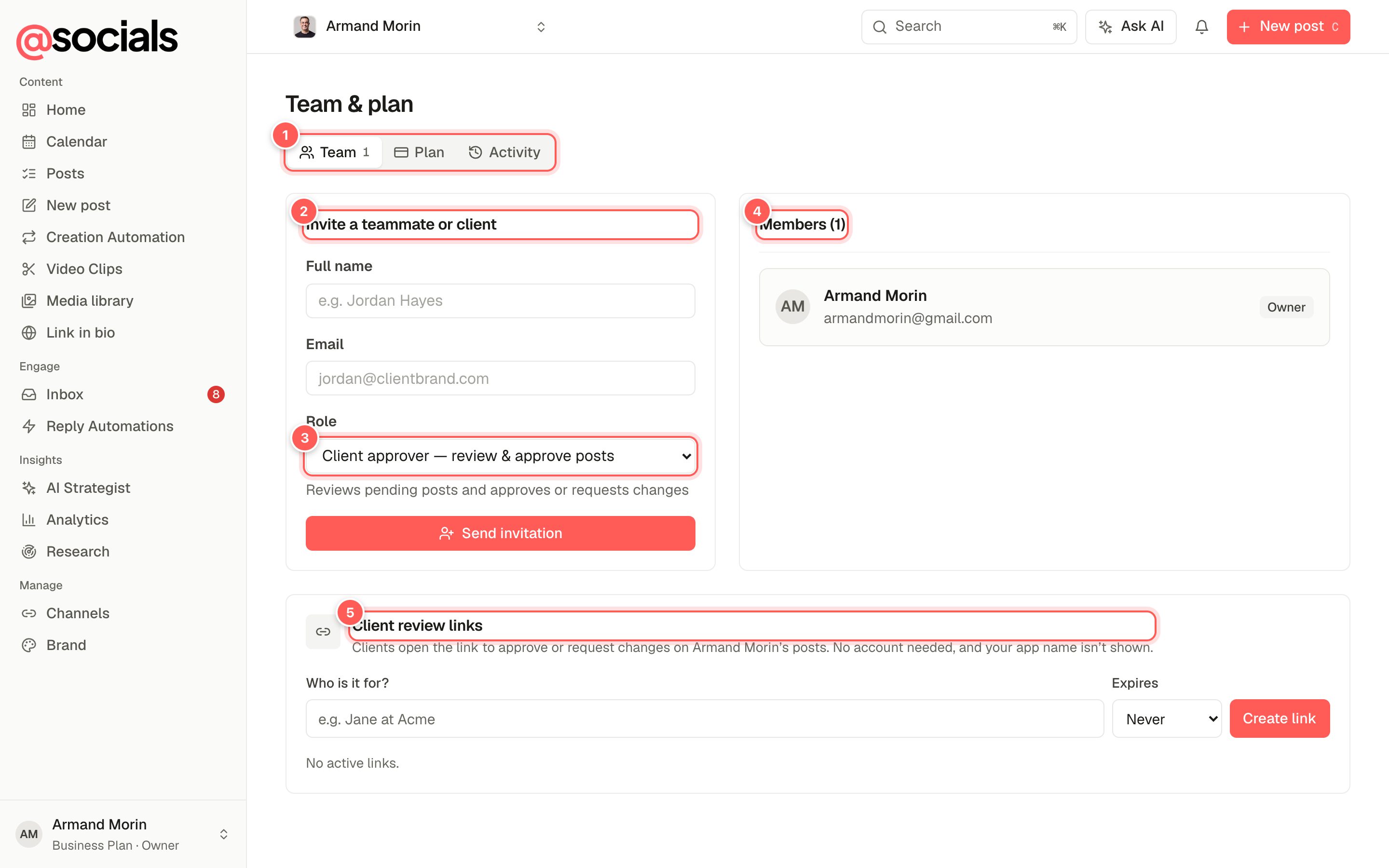
- Team, Plan and Activity tabs.
- Invite a teammate or client: their full name and email.
- Role: what they can do (see below). The line under the menu explains the role you picked.
- Members of this brand and their roles.
- Client review links for people without an account. See Client review links.
Click Send invitation. They get an email with a link to create their account and join this brand.
Roles
| Role | Can do |
|---|---|
| Owner | Everything, including billing and removing people. |
| Admin | Manage channels, automations, brand settings, API keys and the team. Approve posts. |
| Editor | Create, edit and schedule posts, use AI and the inbox. |
| Client approver | Review posts and approve them or ask for changes. Sees Home, Calendar and Analytics only. |
| Viewer | See the calendar and analytics. Can't create or change anything. |
Team roles and approvals depend on your plan.
Approvals
To have a post signed off before it goes out, tick Send for approval first in the composer (or in Creation Automation and Video Clips). The post waits in Calendar → Approvals, and owners, admins and client approvers are notified. When they approve, it goes out at its scheduled time. If they ask for changes, the author is notified with the comment.
Client review links
A review link lets a client approve posts in their browser without an account. The page shows your brand, not AtSocials.
- Under Client review links, type who it's for (for example Jane at Acme) and when it should expire (never, 7, 30 or 90 days).
- Click Create link and copy it straight away. For security it's shown only once.
- Send it to your client. They see the posts waiting for approval, plus what they reviewed in the last 14 days, and can approve or request changes on each.
Revoke a link at any time from the same list. Team notes are never shown on review links.
Plan and billing
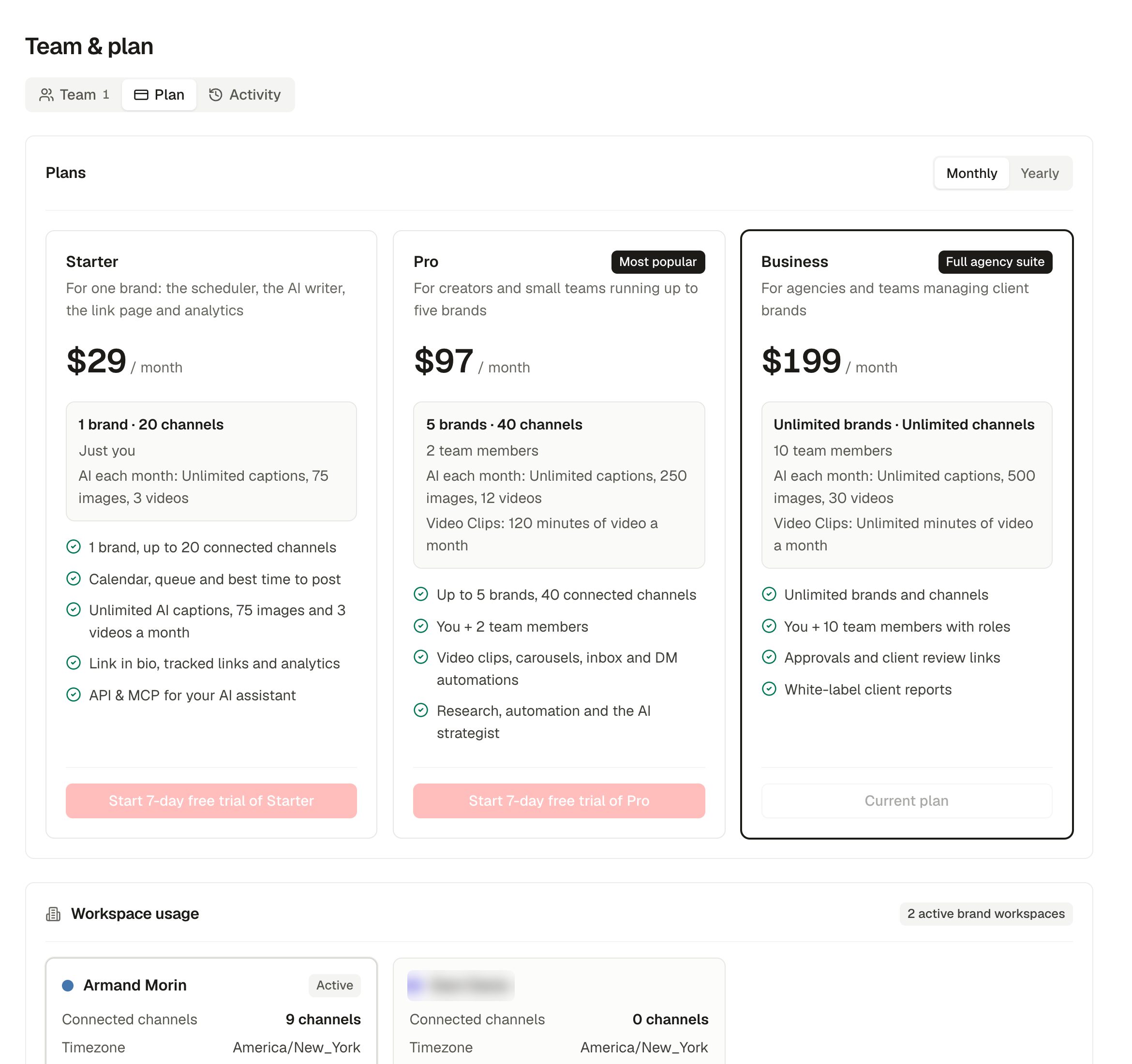
- Switch between Monthly and Yearly billing at the top right.
- Each plan lists its brands, channels, team members, monthly AI allowances and features. Your current plan is marked.
- Changing plan takes effect straight away; the difference is prorated.
- Workspace usage at the bottom shows each brand's channels and limits.
- Manage billing (next to Monthly / Yearly, once you've subscribed) opens the billing portal for your card, invoices and cancellation.
New subscriptions start with a free trial, and every plan has a 30-day money-back guarantee.
Activity log
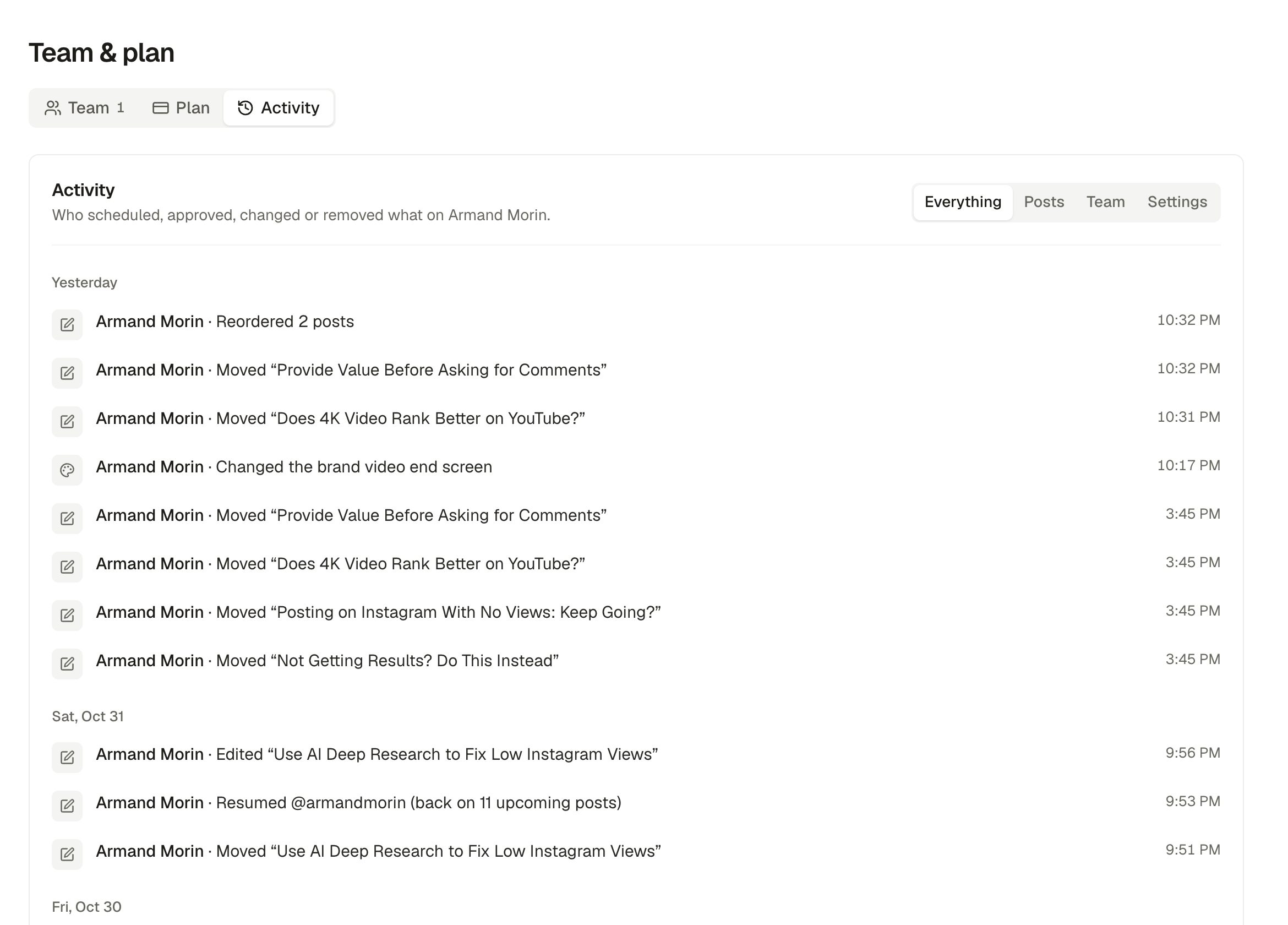
See who did what and when: posts created, moved, edited, unpublished or deleted, approvals, review links, invites, brand settings, channel changes, API keys and billing. Filter by everything, posts, team or settings.