Help center · Create & publish
Posts
Posts lists everything this brand has published, scheduled or saved as a draft, newest first and grouped by month. It's the fastest way to find a post and see how it did.
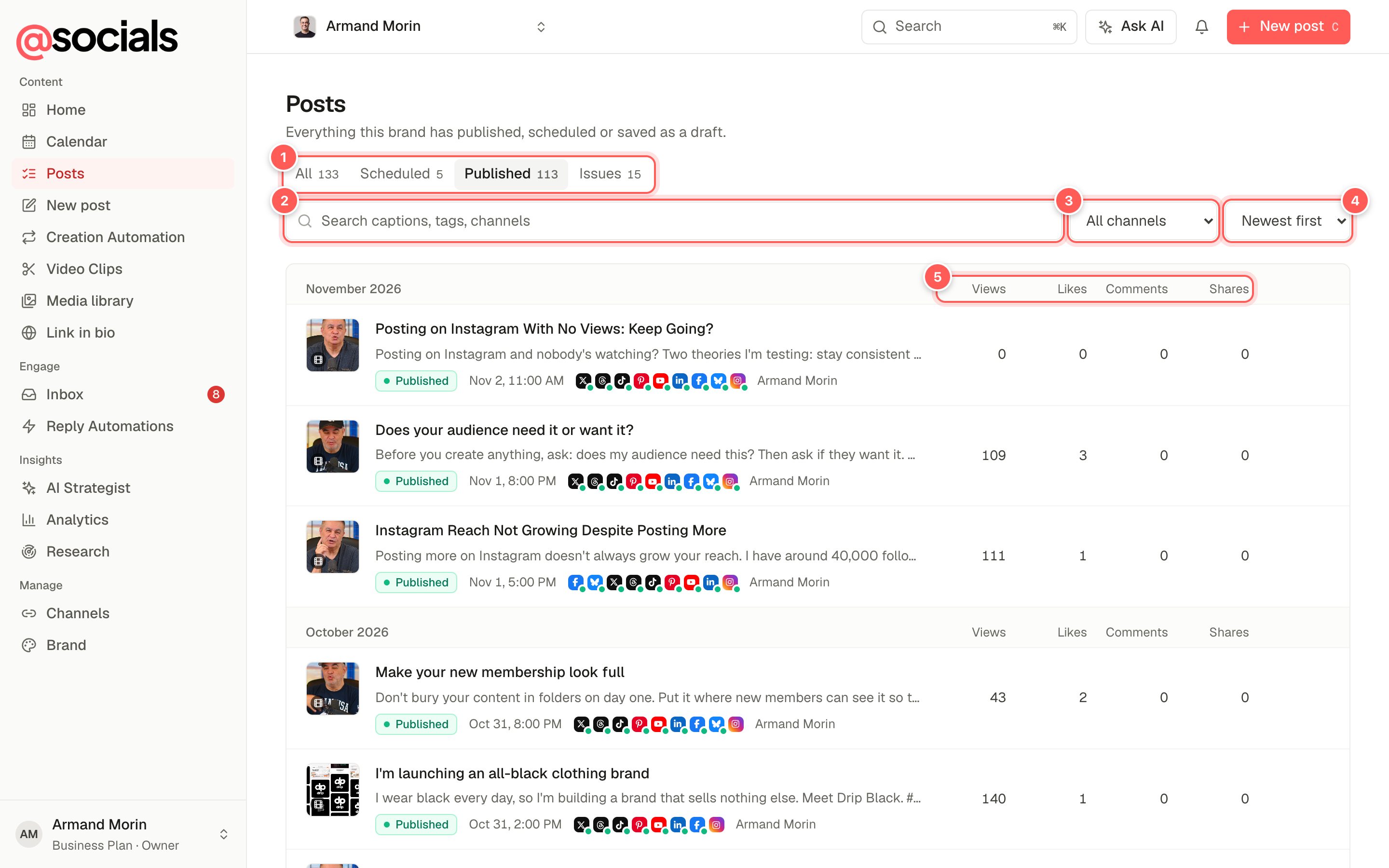
- Status tabs. All, Scheduled, Published and Issues (posts where a channel failed), with counts.
- Search captions, tags and channel names.
- Channel filter shows only posts that went to one network.
- Order: newest or oldest first.
- Results. Views, likes, comments and shares for published posts, added up across channels. Views use each network's view count, or impressions where a network doesn't count views.
Open a post
Click a post to open its details on the right: the media, the caption, each channel's status and live link, and a per-channel breakdown of results. From there you can edit, retry, remove it from one channel, mark it evergreen, leave a team note or delete it. The panel is the same as in the calendar; see Post details.
Each post has its own address (/posts?post=…), so you can copy the link from your browser and send it to a teammate. Search results from ⌘ K open here too.
Good to know
- The list shows 25 posts per page. Use the page numbers at the bottom for older posts.
- Results come from the networks and can take a few hours to appear after a post goes live.
- Results need the analytics feature on your plan. Without it, the columns stay empty.