Create with AI
The AI panel writes captions, threads and carousels and makes images and short videos, all in your brand's voice and style. Everything it makes lands in the composer for you to review. Nothing is posted on its own.
Open it from the composer with Write with AI (next to the caption) or Create with AI (next to Media). The panel slides in from the right and has five tabs.
Write: captions
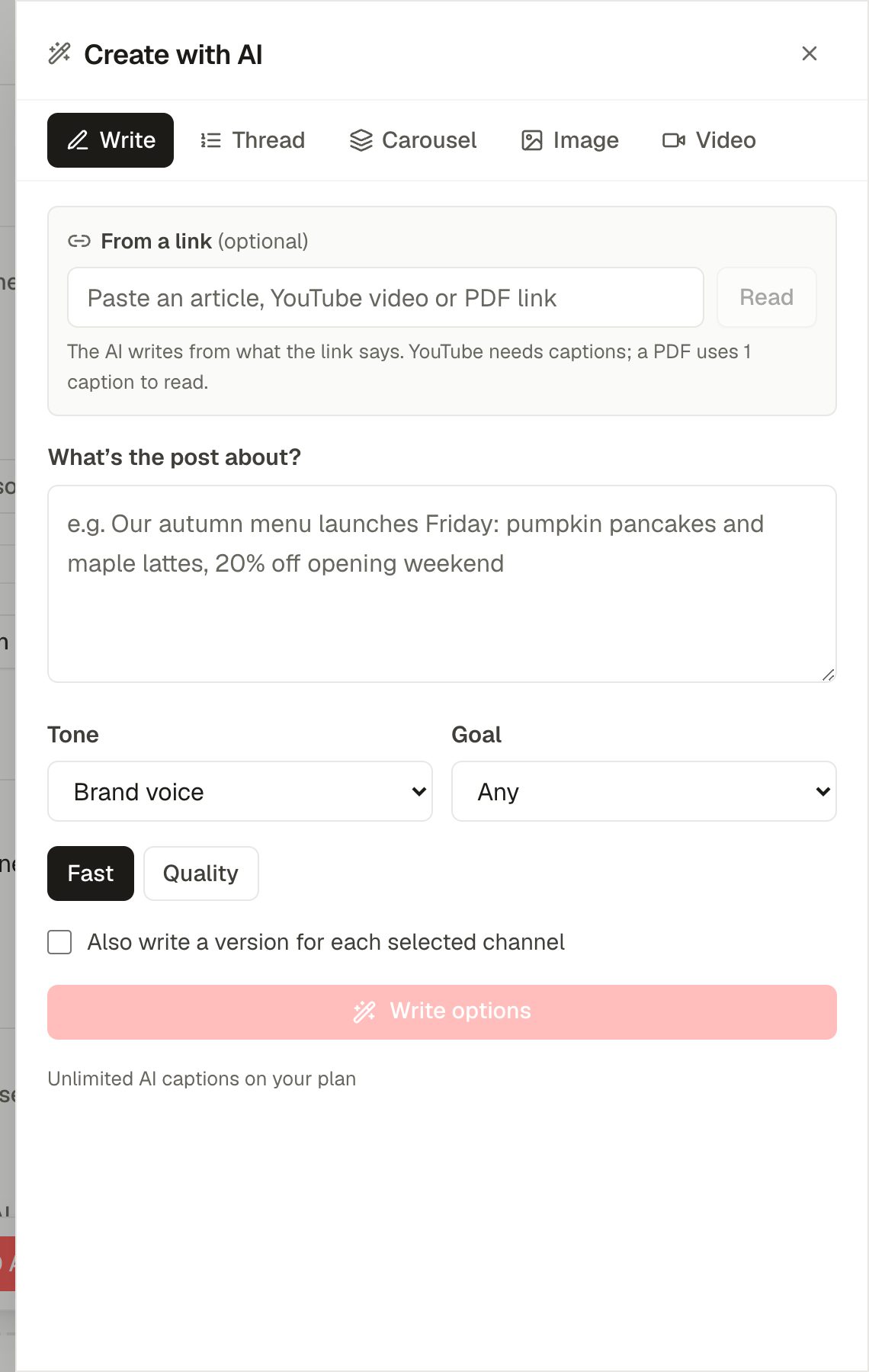
- Describe the post in What's the post about?: a sentence or two is enough.
- Tone: keep Brand voice (from your Brand settings) or pick Friendly, Bold, Professional, Playful, Inspirational or Urgent.
- Goal: awareness, conversation, clicks or an offer. The AI shapes the call to action to match.
- Fast or Quality: Quality uses a stronger model and takes a little longer.
- Tick Also write a version for each selected channel to get tailored captions per network.
- Click Write options, then pick the version you like. It goes into the caption box, where you can edit it.
From a link
Paste an article, a YouTube video or a PDF link into From a link and click Read. The AI writes from what the link actually says. Leave the description empty to let it pick the angle. YouTube videos need captions; a PDF uses 1 AI caption to read.
Thread
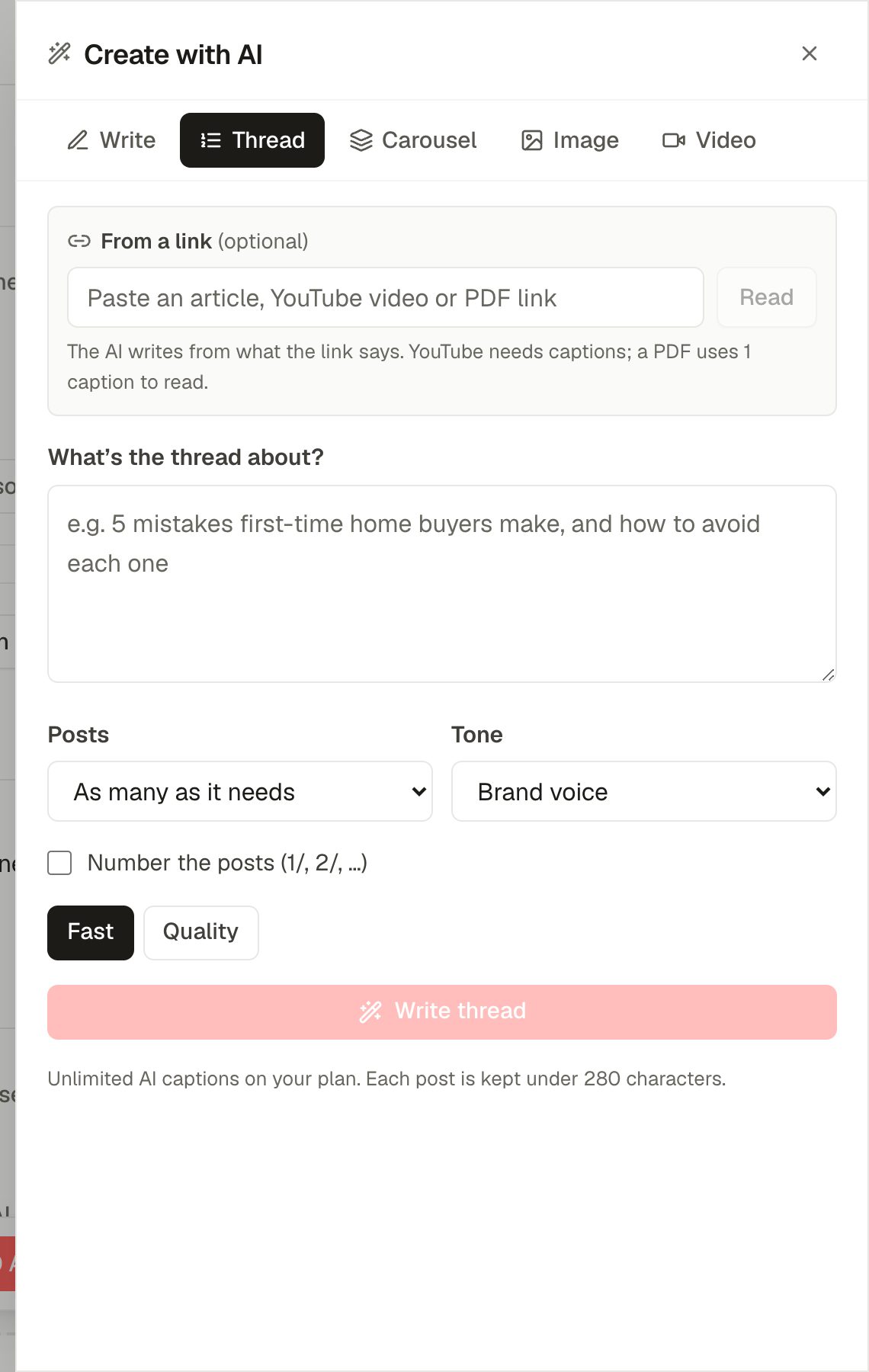
Describe the topic, choose how many posts (or As many as it needs), the tone, and whether to number them (1/, 2/…). Each post is kept under 280 characters. The opening post becomes your caption and the rest become follow-up posts under More options.
Carousel
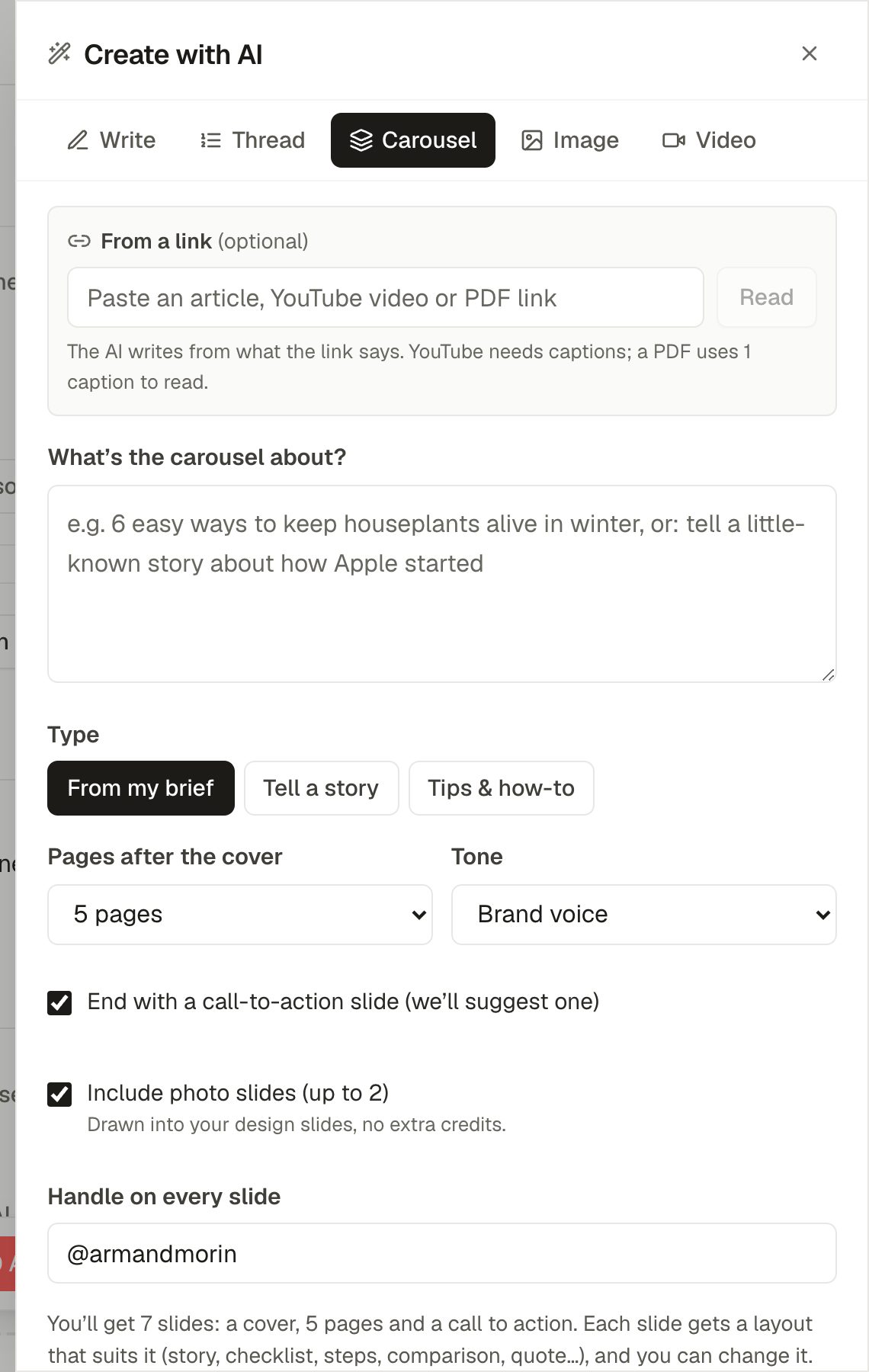
- Type: From my brief, Tell a story or Tips & how-to.
- Pages after the cover: 2 to 8 content slides, plus the cover.
- End with a call-to-action slide: the AI suggests one; you can edit or remove it.
- Include photo slides (up to 2) for a photo-led slide in the middle.
- Handle on every slide: defaults to your Instagram handle.
The AI writes every slide first so you can edit the words. Then choose a look and click Make:
| Look | What it is | AI image credits |
|---|---|---|
| Light / Dark / Brand colour | Clean text slides drawn in your colours, with your logo and handle. | None |
| Story photos | Each slide over its own photo, white text on a darkened image. | 1 per slide |
| Brand style | One background in your trained brand image style behind every slide. | 1 |
| Your design | Slides made to match your own template and examples from Brand → Slide design. | 1 per slide |
Every slide carries your logo or initials and handle at the top, and a page number and swipe arrow at the bottom.
Image
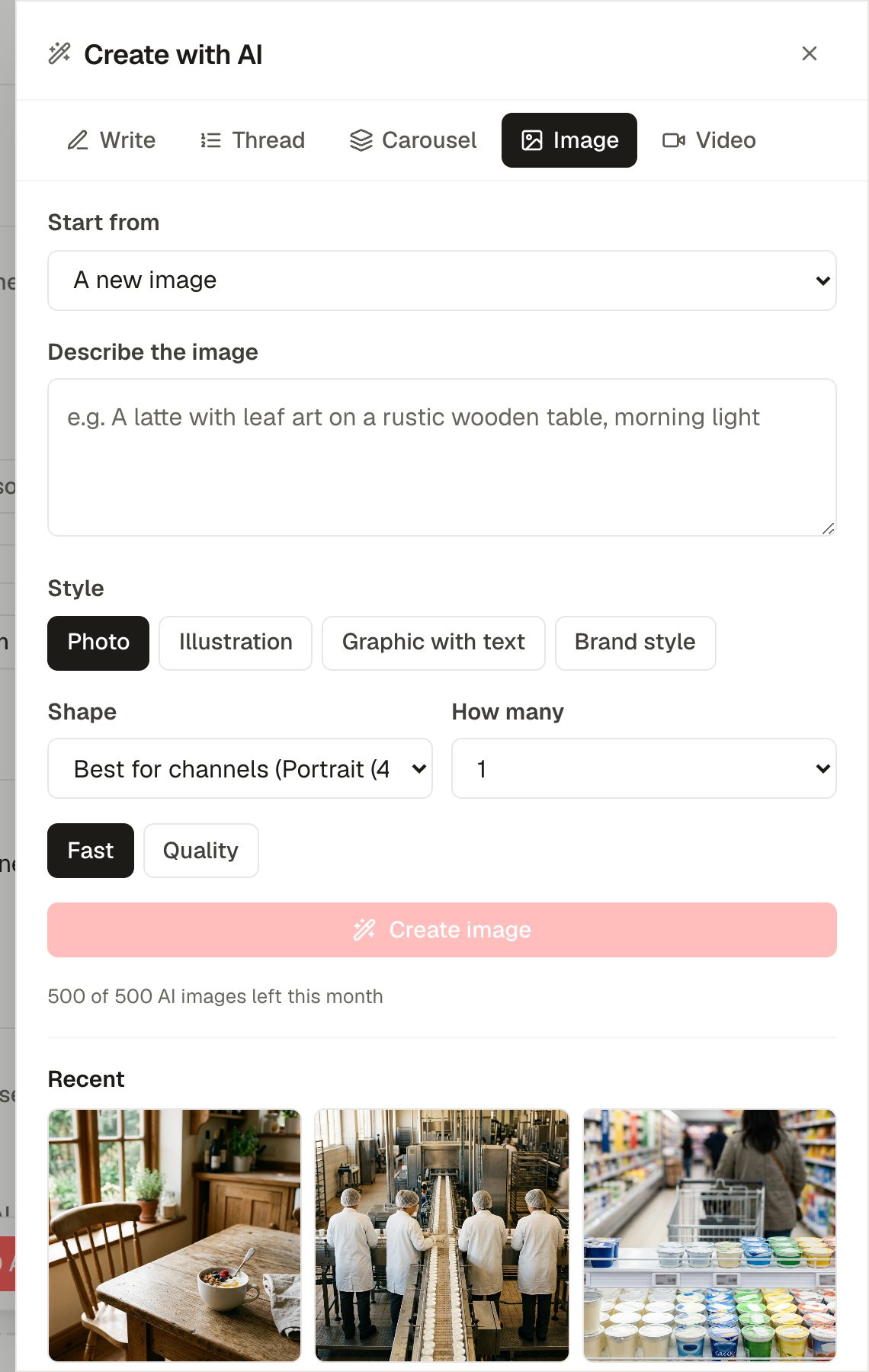
- Start from a new image, or edit an image already on the post.
- Style: Photo, Illustration, Graphic with text, or Brand style (once you've trained one on the Brand page).
- Shape: best for your channels, square, portrait or vertical. How many: 1 to 4.
- The counter under the button shows how many AI images are left this month.
Video
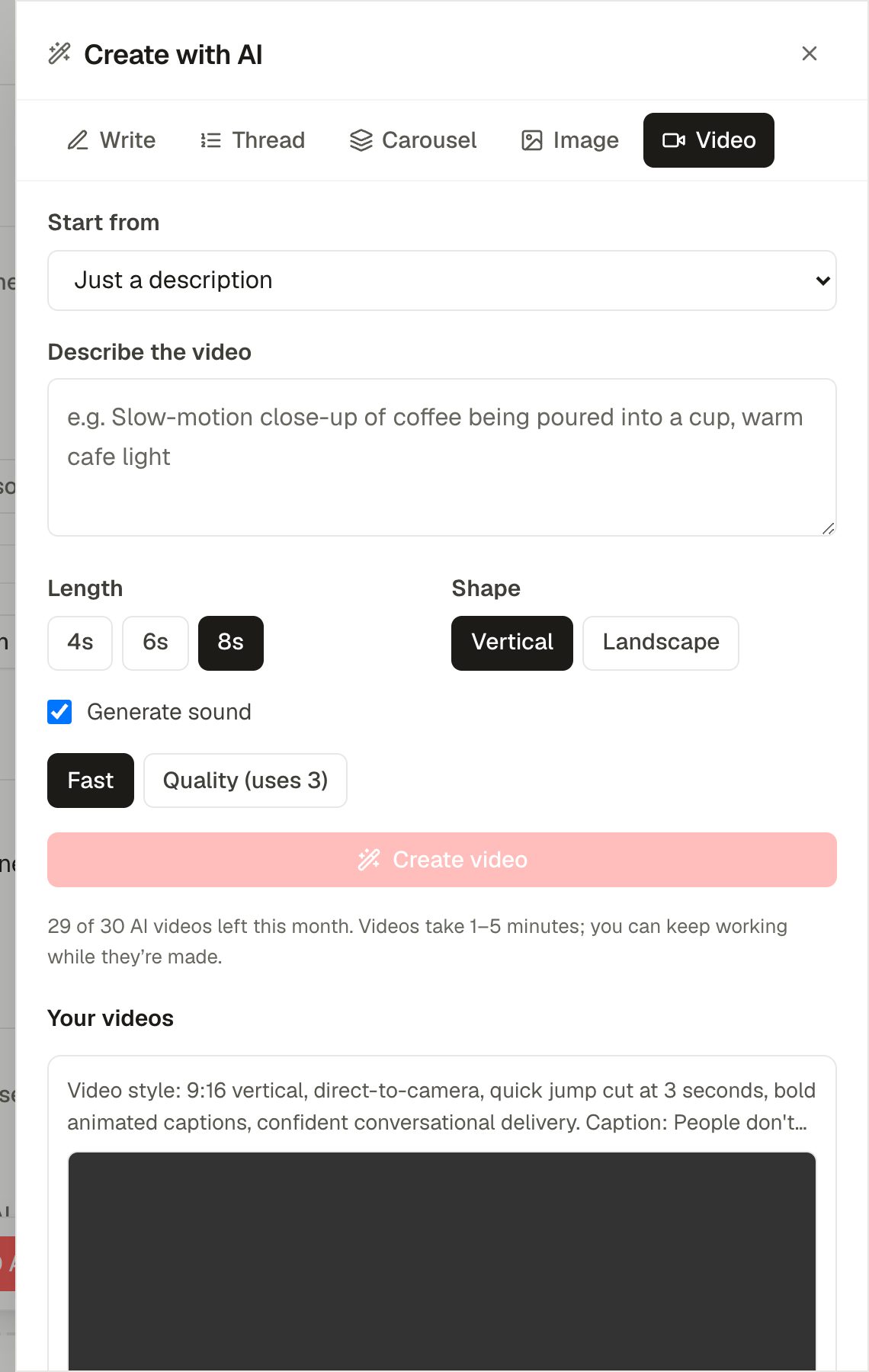
- Start from just a description, or animate an image already on the post.
- Length: 4, 6 or 8 seconds. Shape: vertical or landscape. Generate sound adds matching audio.
- Fast uses 1 video credit, Quality uses 3.
- Videos take 1 to 5 minutes. You can keep working while they're made; they appear under Your videos with Add to post.
Monthly allowances
AI captions, images, videos and AI Strategist messages each have a monthly allowance that depends on your plan. Each tab shows what's left. Failed generations don't count. The allowance resets every month; see your current plan under Team & plan → Plan.