New post
The composer is where every post is made. Pick channels, write one caption (or one per channel), add photos or video, check it, then publish now, schedule it or drop it in the queue.
Open it with New post in the top bar or the sidebar, or press C. On a phone, tap the + in the bottom bar.
The composer
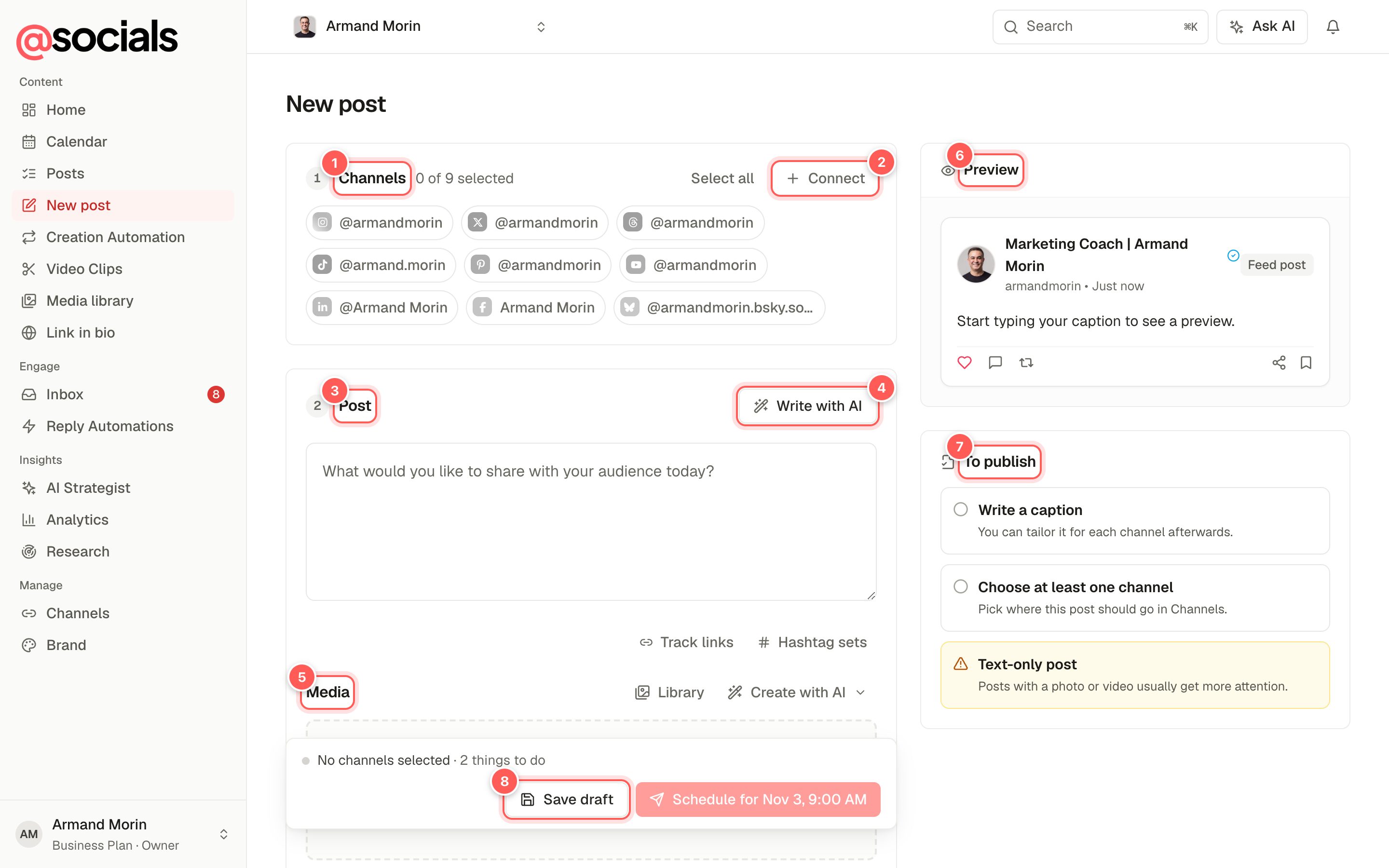
- Channels. Click each account the post should go to. Select all picks every channel. The composer remembers your last choice for next time.
- Connect adds another account without leaving the composer.
- Post. Your caption.
- Write with AI opens the AI panel to write the caption, a thread or a carousel for you. See Create with AI.
- Media. Drop photos or videos here, browse your computer, pick from the Library, or make new media with Create with AI.
- Preview. How the post will look on each network. Switch networks with the small icons at the top of the preview.
- To publish. A checklist of anything missing, plus tips. It becomes Before you publish once you start.
- Action bar. Save draft keeps the post without scheduling it. The main button publishes or schedules, and its label tells you exactly when.
Write and customise
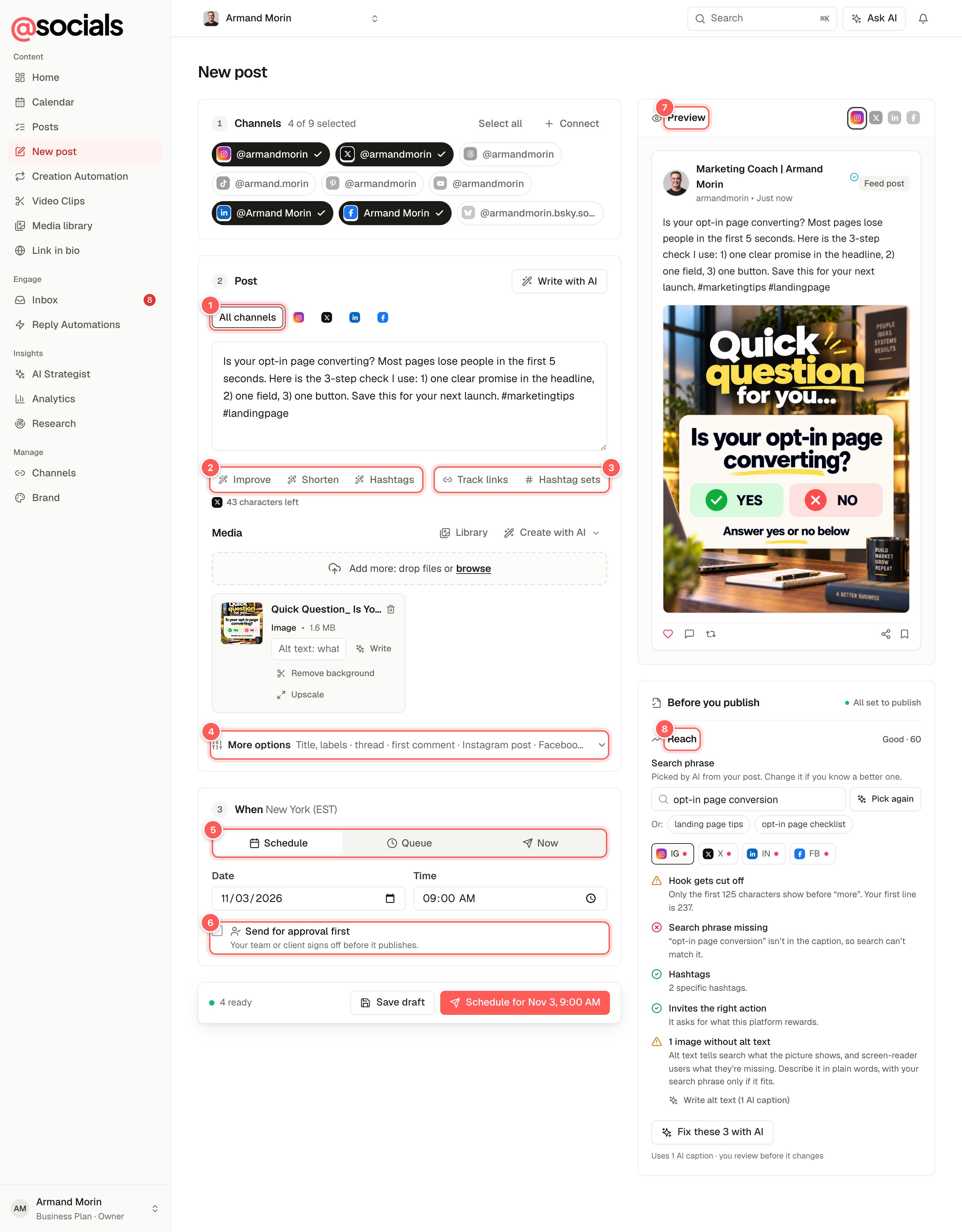
- All channels / per-channel tabs. By default one caption is shared by every channel. Click a network's icon to give that channel its own version (a shorter one for X, say). Each tab shows how many characters you have left.
- Improve, Shorten, Hashtags. One-click AI edits of the caption you've written. Hashtags suggests tags that suit the post and the channels.
- Track links swaps a link in the caption for a short link that counts clicks (with optional UTM tags for your web analytics). Results show in Analytics → Tracked links. Hashtag sets saves groups of hashtags you use often and adds them in one click.
- More options: thread, internal title, campaign labels, first comment and each network's format. See More options.
- When. Schedule, queue or publish now. See Choose when it goes out.
- Send for approval first. The post waits for your team or client to sign off before it publishes. See Approvals.
- Preview updates as you type, including the image crop.
- Reach check. Tips to help the post be found and read. See Reach check.
Photos and videos
- Several images make a carousel on networks that support one.
- Alt text. Each image has an alt text field for screen readers and search. Click Write to let AI describe the image (1 AI caption).
- Remove background and Upscale clean up an image with AI.
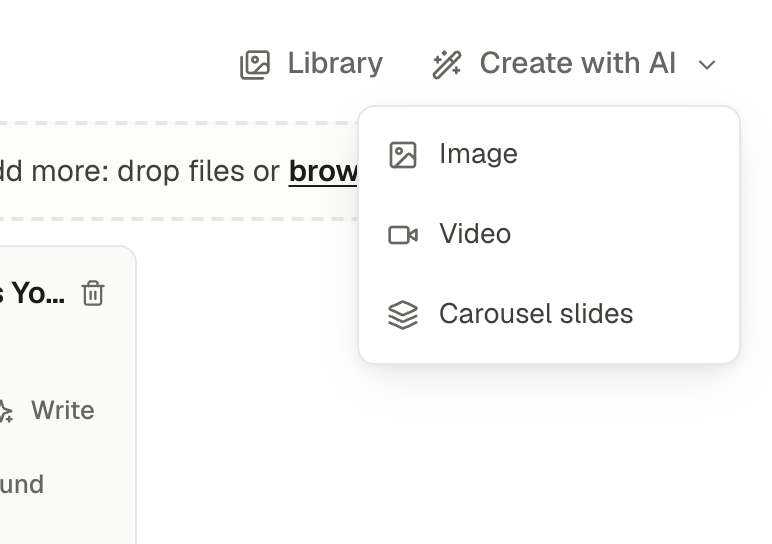
- Create with AI next to Library makes a new image, video or set of carousel slides:
More options
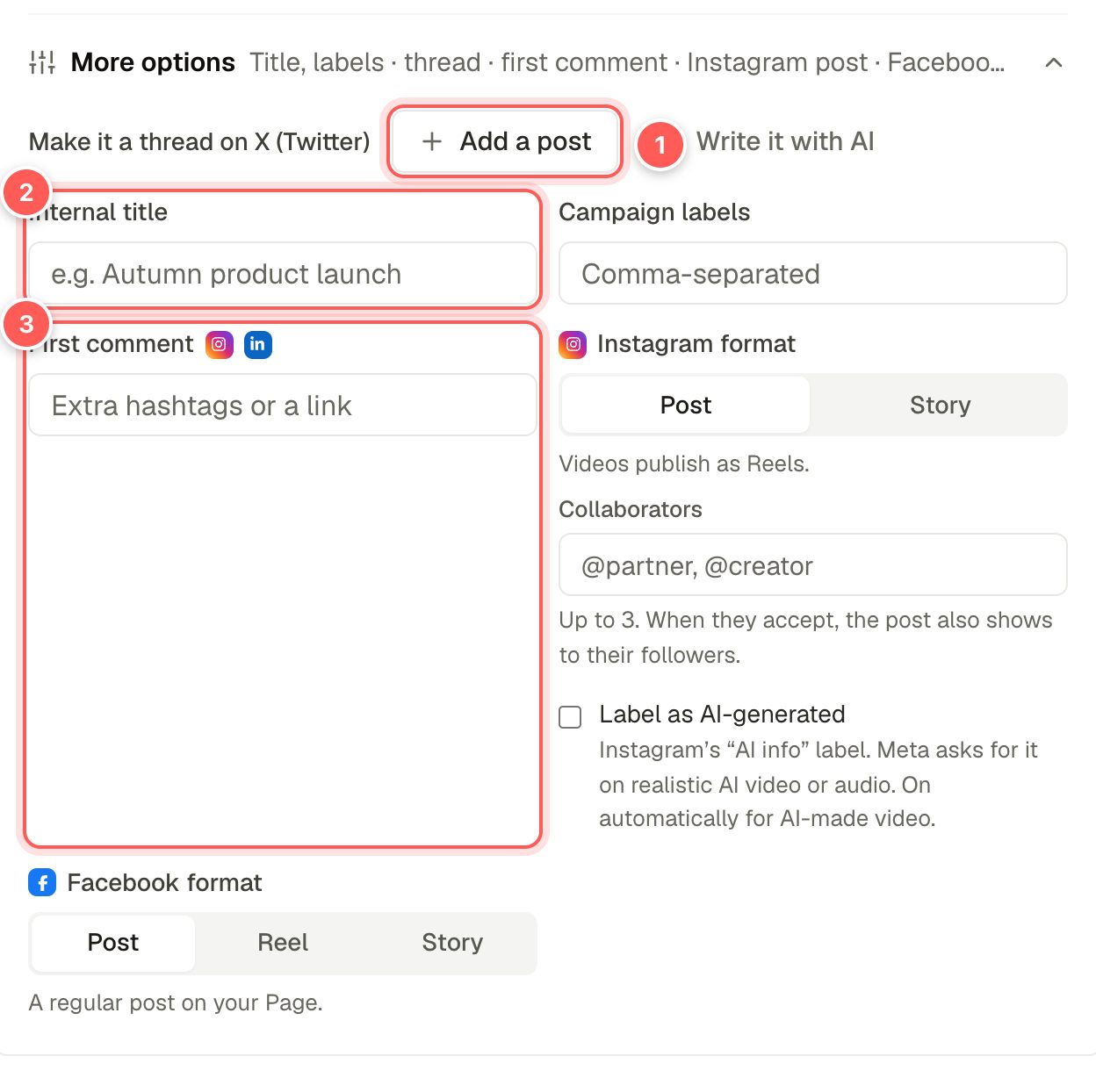
- Make it a thread. On X, Threads and Bluesky, Add a post adds follow-up posts after the caption; Write it with AI writes the thread for you.
- Internal title and campaign labels are only for you and your team, to find and group posts later. They're never published.
- First comment is posted as a comment right after the post goes live. Good for extra hashtags or a link.
Below these you'll find options for each network you picked:
- Instagram format: Post or Story (a single video posts as a Reel). Add up to 3 collaborators (the post also shows to their followers once they accept), choose a Reel cover frame, post as a trial reel to non-followers first, and Label as AI-generated (switched on automatically for AI-made video).
- Facebook format: Post, Reel or Story.
- YouTube: title (with Suggest titles), category, playlist, tags (with Suggest tags), made for kids, notify subscribers and the AI disclosure.
Choose when it goes out
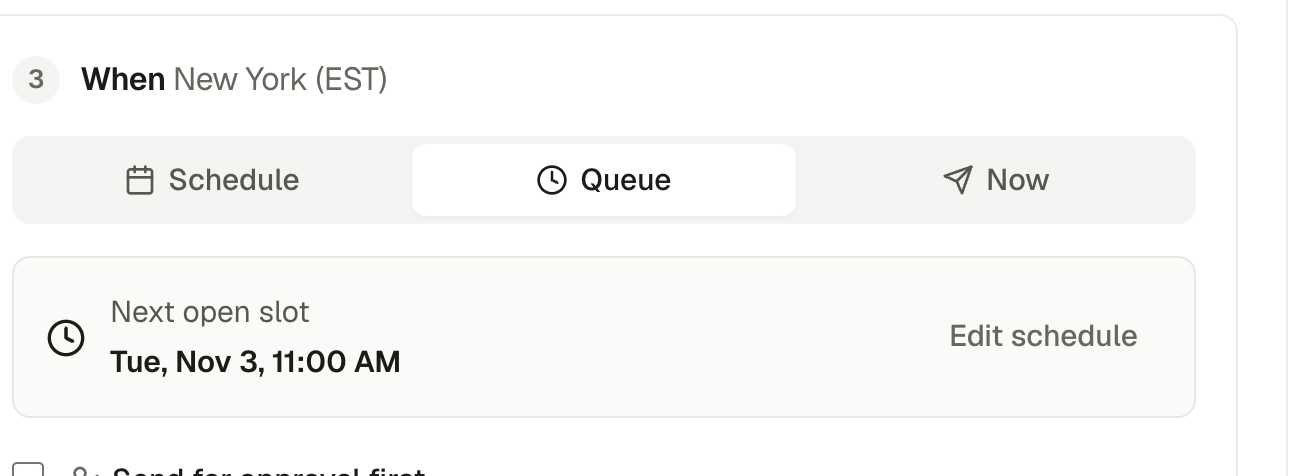
| Option | What happens |
|---|---|
| Schedule | Pick an exact date and time, in the brand's timezone (shown next to When). |
| Queue | Takes the next free time on your posting schedule. Edit schedule changes those times. |
| Now | Publishes as soon as you click the button. |
Tick Send for approval first if someone has to sign off. The post is held until it's approved and then goes out at its time.
Not ready? Save draft keeps everything. Drafts appear in Posts under All.
Reach check
Once your caption is long enough, the composer picks a search phrase: the words people would type to find this post. Instagram, TikTok, YouTube and Pinterest all work partly like search engines now, so a clear phrase near the start helps.
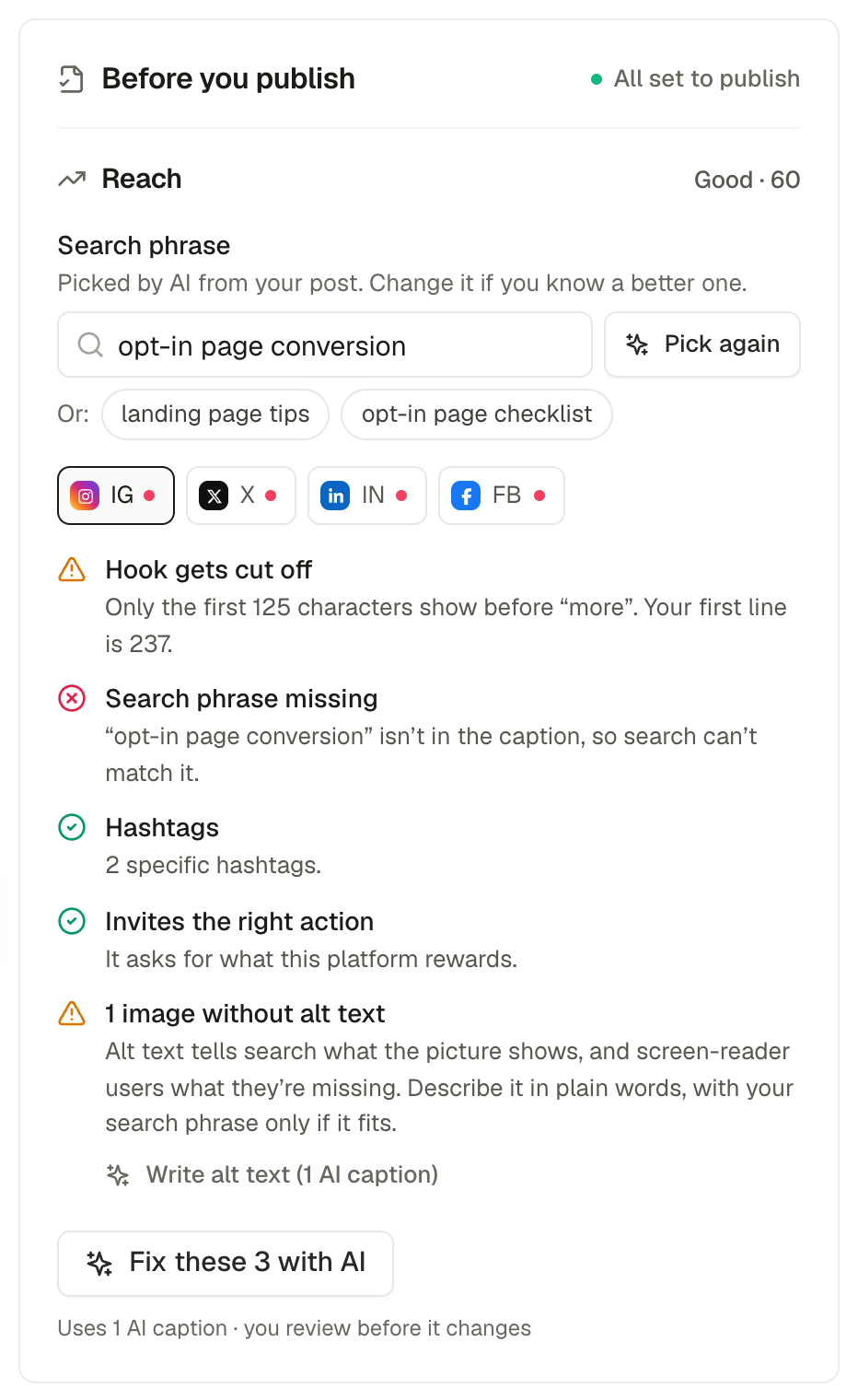
- Search phrase. Type your own, pick one of the two alternatives, or click Pick again. A phrase you type yourself is never replaced.
- Network pills (IN, FB, IG, X…) switch the checks between channels. A red dot means something to fix there.
- Checks cover the opening line (is the hook cut off by "more"?), whether the search phrase appears, hashtags (Instagram allows up to 5, Threads 1), the call to action, links, alt text and, for video, what's said in the first seconds.
- Fix these with AI rewrites the caption to fix the listed issues (1 AI caption). You see the proposal first and choose to apply or discard it.
- Keep the best N trims extra hashtags, keeping the most specific ones.
Publish, then follow up
When everything's ready the action bar says so (for example "4 ready") and the main button shows when it will go out. After publishing, open the post from the Calendar or Posts to see each channel's status, view it live or edit it.
Editing a post
- Not published yet: open the post and click Edit post. It opens in the composer with everything filled in.
- Already published: click Edit text next to a channel where the network allows it: Facebook and LinkedIn (text only), X (within an hour, X Premium only), Pinterest (description), Google Business, Reddit, Telegram, Discord and Slack. YouTube has its own Edit YouTube details. Instagram, TikTok, Threads and Bluesky don't allow edits after publishing.