Home
Home is where you start the day. In one screen it shows how the brand is doing, what the AI suggests next, what's coming up this week and anything that needs you.
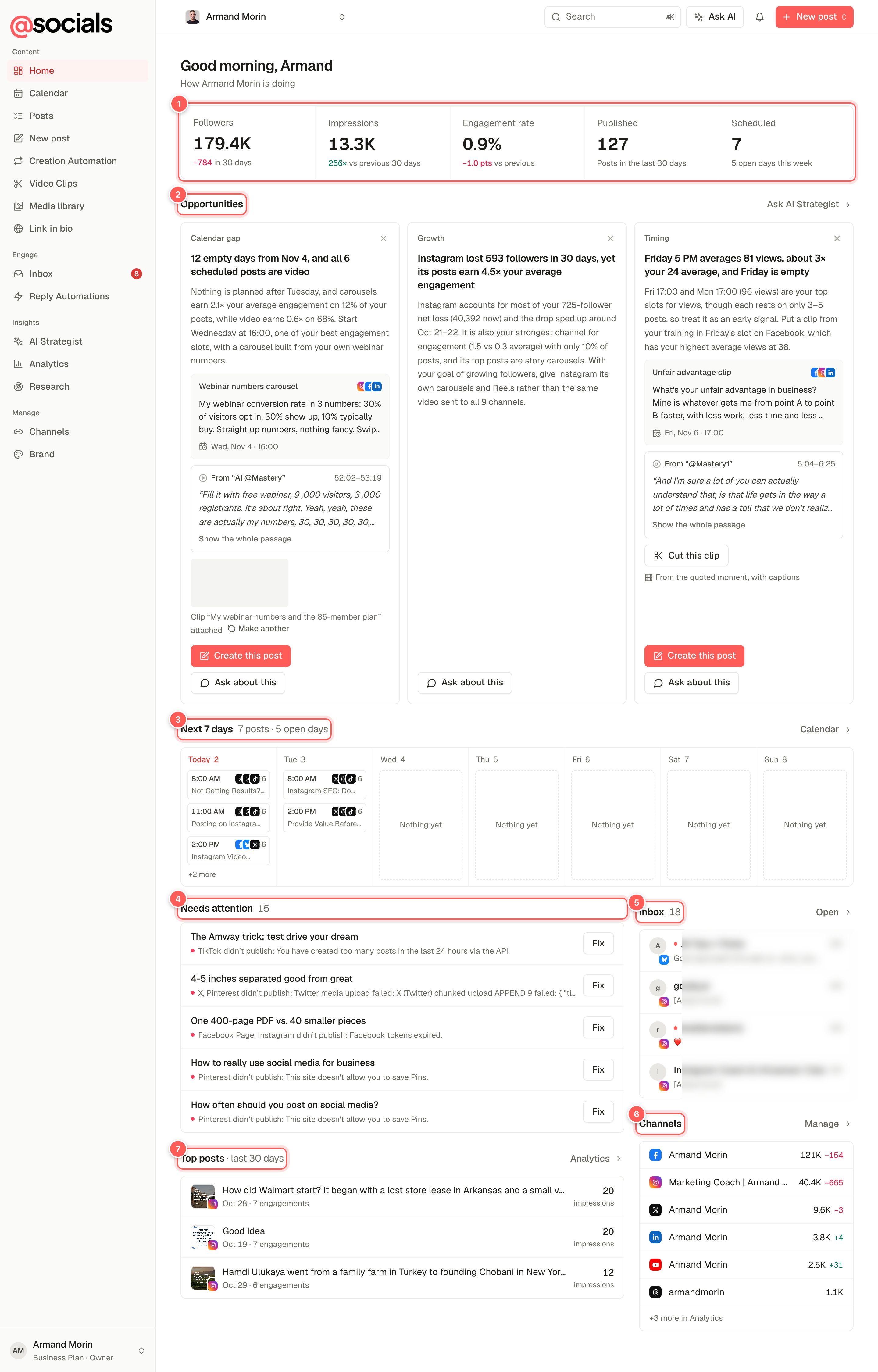
- Headline numbers. Followers across all channels with the 30-day change, impressions and engagement rate compared with the 30 days before, posts published in the last 30 days, and posts scheduled with the number of open days left this week. Click a number to open Analytics.
- Opportunities. Up to three ideas from the AI Strategist, refreshed once a day. See below.
- Next 7 days. What's scheduled each day this week. Days with nothing planned say Nothing yet. Calendar › opens the full calendar.
- Needs attention. Posts that failed on one or more channels, and posts waiting for your approval.
- Inbox. Your latest conversations. Open › takes you to the Inbox.
- Channels. Followers per channel and the change over 30 days. Manage opens Channels.
- Top posts. Your best posts of the last 30 days by impressions.
Opportunities
Every day the AI Strategist looks at your recent results, your calendar and your goals, and writes up to three cards. Each card explains what it noticed (a gap in the calendar, a channel that's growing, a time slot that works) and suggests a ready-to-post idea.
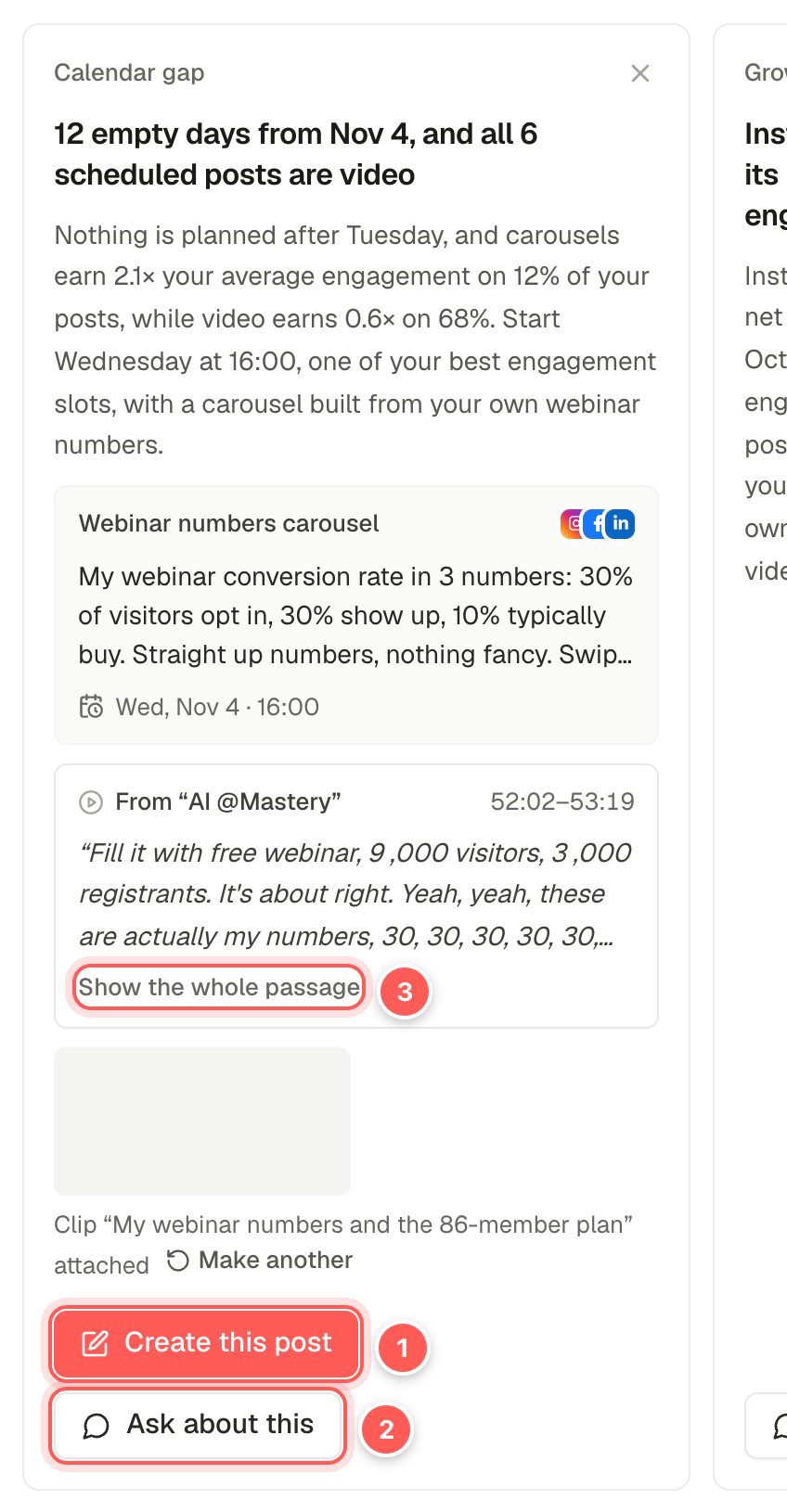
- Create this post opens the composer with the caption, channels, date and any media already filled in. Nothing is posted until you schedule it.
- Ask about this opens the AI Strategist with a question about this card, so you can dig deeper or ask for another angle.
- Show the whole passage. When an idea comes from one of your own videos or knowledge sources, the card quotes it word for word and shows where it came from.
- Cut this clip appears when the quote comes from a video: it makes a short captioned clip of exactly that moment in Video Clips.
- Make the image / Make the slides creates the visual for the idea with AI (this uses your AI image allowance).
- Click × on a card you don't want. The strategist remembers what you dismiss and what you open, and takes it into account next time.
Next 7 days
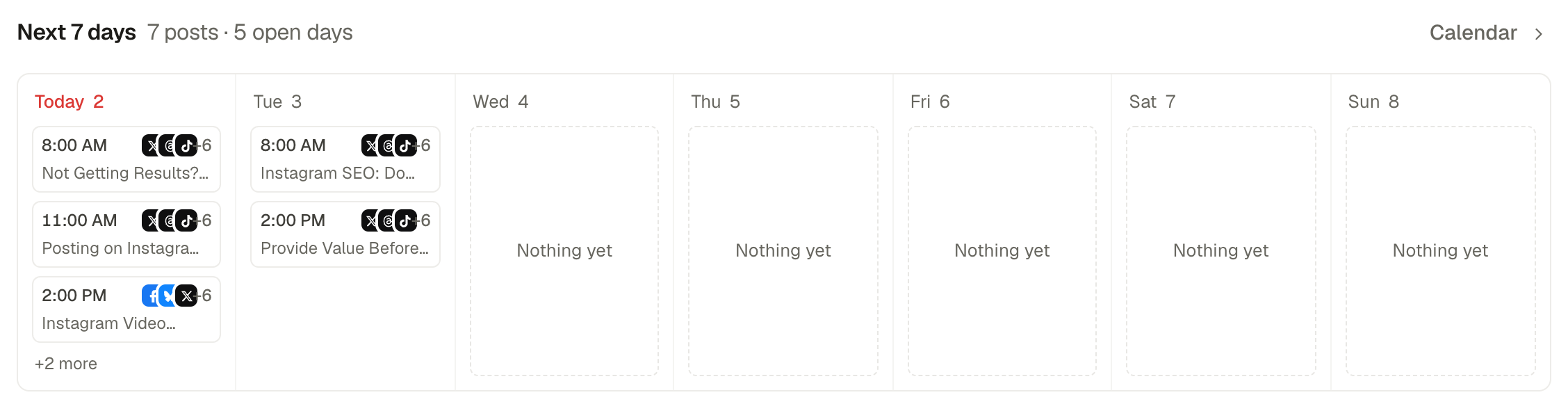
Use this row to spot empty days quickly. Open the Calendar to fill them, or add posts to the queue so they take the next free posting time.
Needs attention
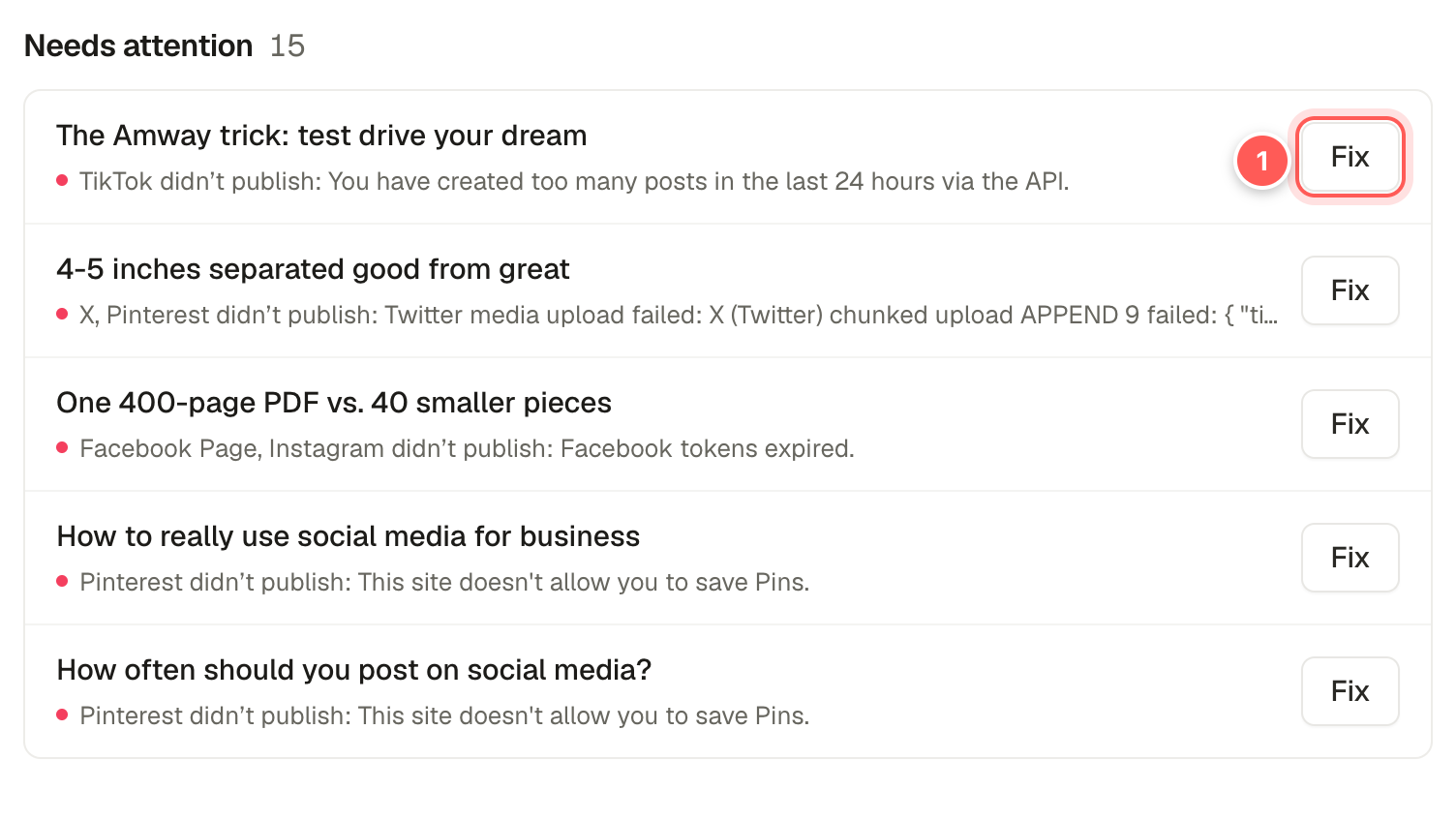
- Fix opens the post in the calendar so you can see what happened, edit it or retry. Posts waiting for approval show Review instead.
The most common reasons are an expired connection ("tokens expired": reconnect the channel), a network limit ("too many posts in the last 24 hours") or a link the network refuses. See Why did my post fail?